

One phone photo to a full shop set
Start from the photo on your phone. Four presets turn it into the pictures and the clip a shop page needs.
- 6 min read
- Updated
- Presets: Product photos, Restyle, A+ content modules, Product demo
You have a product and a phone. You do not need a studio day to fill a shop page: one clear photo is enough to start.
This guide goes from that photo to a studio hero, a seasonal version, a banner for the product page and a short clip. Each step uses one preset. Each example below is the real output shown on that preset's page, and they are different products, so read the captions.
Take the photo
Put the product on a plain surface in daylight and take one clear photo of each side you want seen. One to three photos is enough for Product photos. Shoot one product at a time: a second colour or variant gets its own run.
- Write one line that names the product, says what it is made of and roughly how big it is. Those words travel with the photos.
- Have your logo file ready only if it must appear on the product or packaging.
- Keep the photos in your Library or on your phone. Every preset in this guide takes an upload or a pick from your Library.
Watch for this:It shows only the sides you shot. The model shows only the sides your photos show. A side you did not photograph will not appear, so if your shop needs the back or the sole, take that photo now.
Make the studio hero
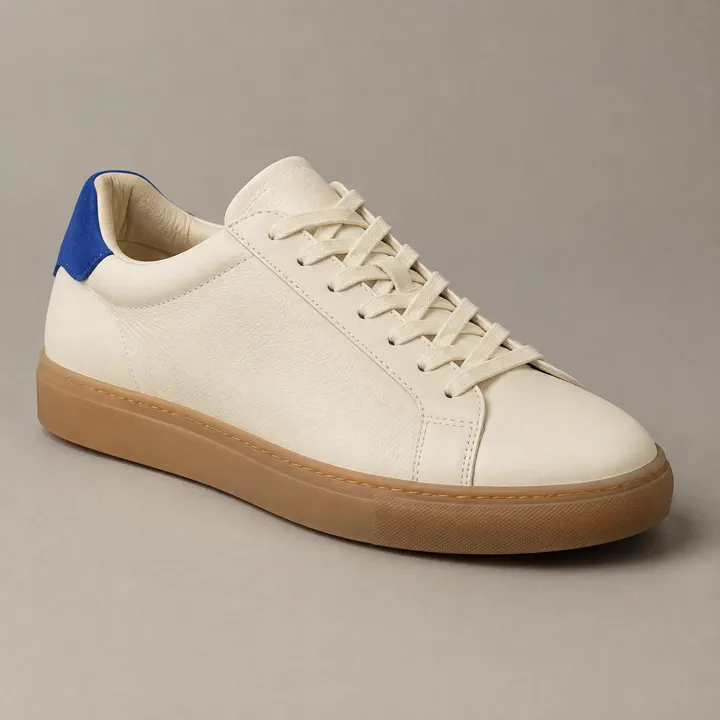
Open Product photos, add your photos and your one line, and say where the picture will be used: Shop listing for a square, Instagram feed for portrait, Stories and Reels for vertical or Website banner for wide. The choice sets the picture shape, so you do not crop later.
Under the preset you can pick a direction for a specific shot: Hero on white, Lifestyle scene, In hand closeup, Hero banner or Social carousel set. Start with the hero. The next step restyles it.
Dress it for a season
Open Restyle and give it the hero you just made. Pick an aesthetic (Clean girl minimal, Cottagecore, Quiet luxury old money, Dark academia or Y2K revival) and a season (Christmas, Valentine's Day, Halloween or Black Friday), or leave the season alone.
Say in a few words what must not change, such as the product and its colours, and pick the picture shape of your original so the framing comes back the same. The styling, the setting and the light change around the product. Nothing printed is added, so the picture is left clean for your own text.
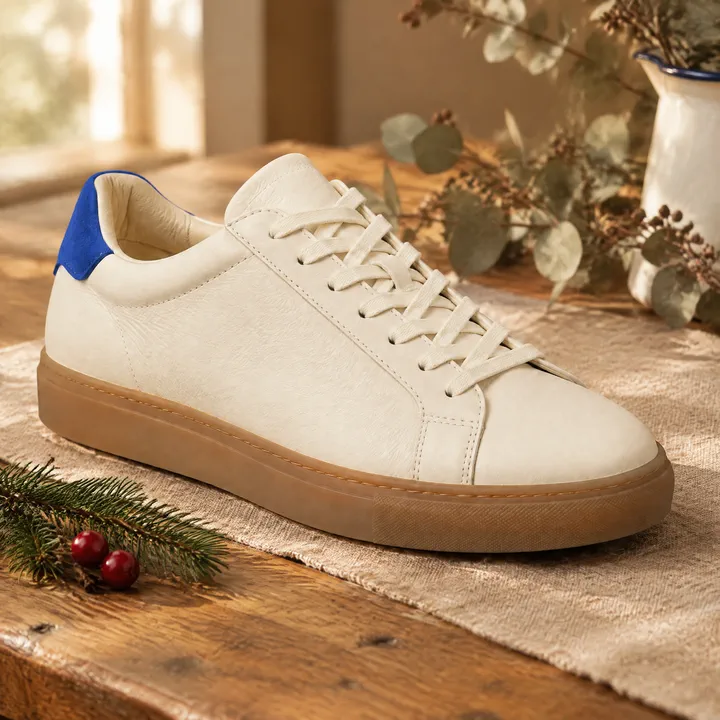
Cottagecore, Christmas. Keep the sneaker, its off white leather and its cobalt heel tab.
Make a banner for the product page
A+ content modules makes the layout cards a product page shows under the listing. The Hero banner card puts your product on one side and your headline and one supporting line on the other, typed on the image. The other cards cover pain points, features, ingredients, how to use and a customer quote you supply.
Add your product photos, a headline of at most eight words and up to four short lines. If you would rather set the headline yourself, the Hero banner direction under Product photos leaves clean space beside the product for it.
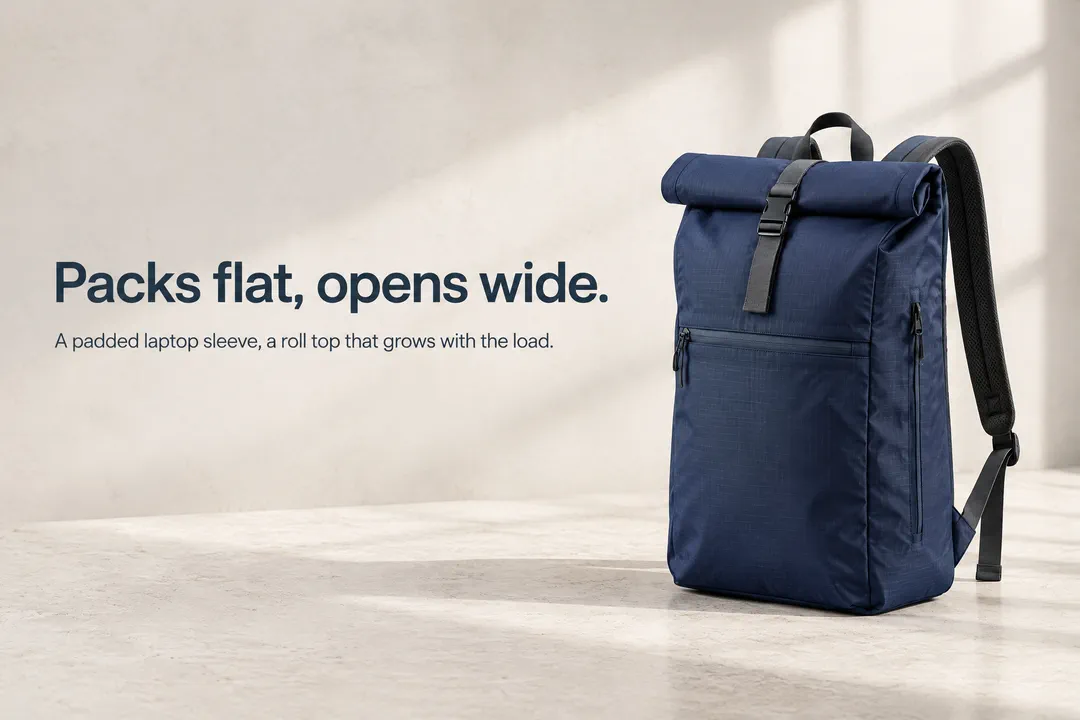
Tip:Words go in the headline and lines, nowhere else. A+ content modules is the one step here that puts words on the picture, and only the headline and lines you type: the card carries no other text. They go on exactly as you type them, so check the spelling before you create. For Product photos and Restyle, keep words out of your description: text, prices and badges go on afterwards, so nothing in the picture is misspelled.
Make a short clip
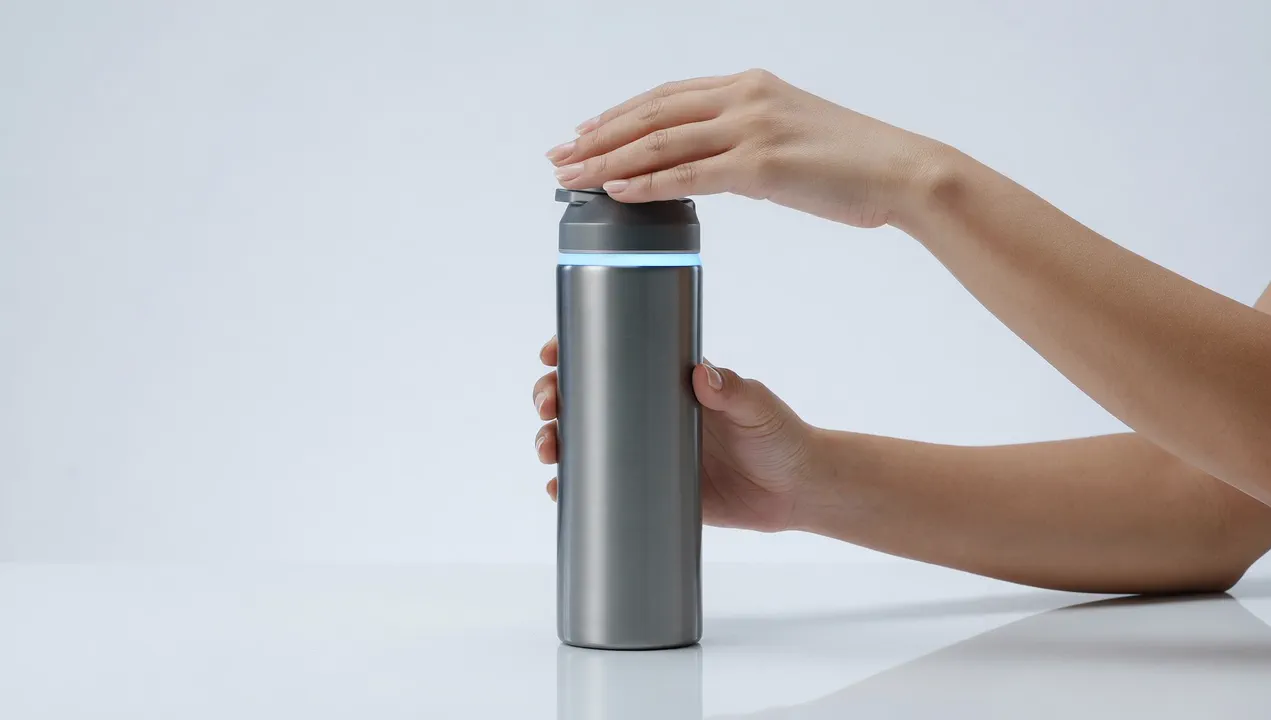
Product demo shows your product doing its job in clean studio shots, with no presenter. Add one to four product photos, name the product and say what the hands should show, such as opening the lid in one motion.
You can add what you can promise about the product, or skip it. The clip says nothing you did not write there. For other formats, with or without a person on camera, see Product videos without filming.
What it costs
Each picture is its own run, charged at the preset's estimate for the size you pick. The 2k and 4k sizes cost more per picture, so stay at the standard size unless where you sell asks for bigger files. The clip is priced by its length and resolution.
- Product photos
8 credits per image, 21 at 2k and 58 at 4k
Takes under 2 min
- Restyle
8 credits per picture, 21 at 2k and 58 at 4k
Takes under 2 min
- A+ content modules
8 credits per module, 21 at 2k and 58 at 4k; about 48 for the six card set
Takes under 2 min per module
- Product demo
70 credits per 5s at 1080p (39 at 720p, 23 at 480p)
Takes 2 to 5 min
Read live from the catalog when this page loads. Every price is shown before you generate. See every rate.
New accounts start with 350 free credits, no card required.
Questions and answers
- Will the product look like my real product?
- Your photos ride along as references, and the prompt asks for the same shape, materials, label and details. Check each picture against the real thing before you publish.
- Can it show a side I did not photograph?
- No. It only shows the sides your photos show. If a place you sell needs another angle, take that one photo and run it again.
- Can my logo appear on it?
- Add your logo file on the Product photos run only if it must appear on the product or packaging. You can skip it.
- Which models make the pictures and the clip?
- Product photos, Restyle and A+ content modules run on GPT Image 2.5 Flare and GPT Image 2.5 Sunburst. Product demo runs on Grok Imagine 1.5 for a single shot and moves to MiniMax H3 for a walkthrough of several shots.
- Why are the examples different products?
- Each example is the one shown on that preset's own page. Together they show what each step makes, not one run from one photo.
Start with the photo you already have
Open Product photosRelated guides
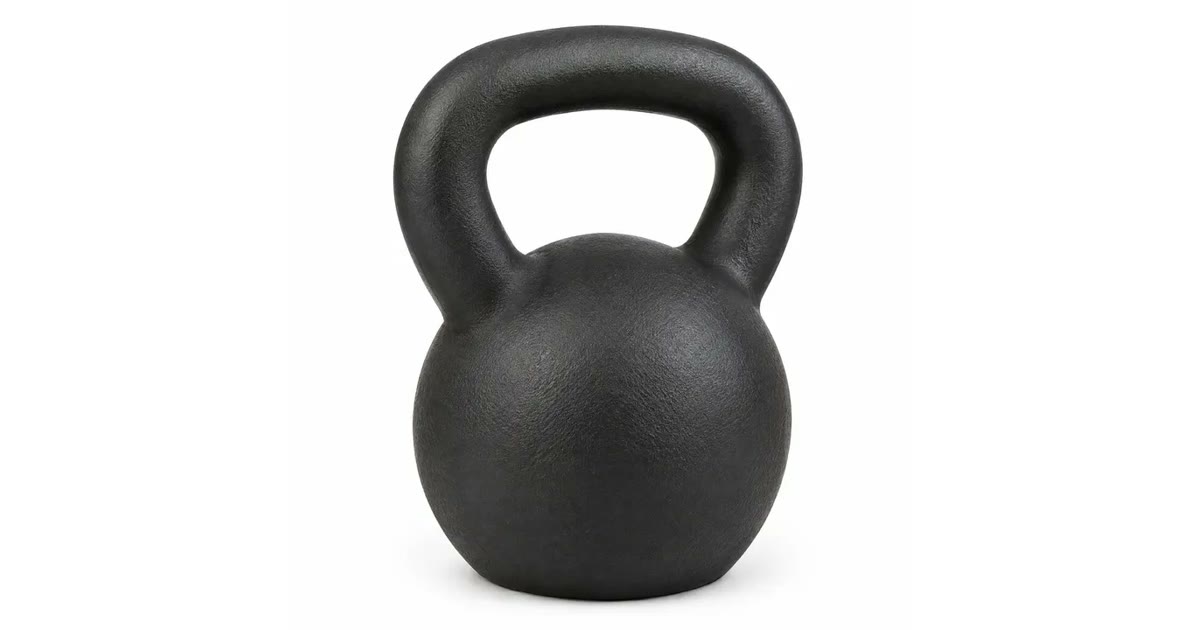
Product images
A full marketplace listing set, main image first
Make the main image on white from your own product photos, approve it, then make only the supporting images and page modules your listing needs.
· 5 min read
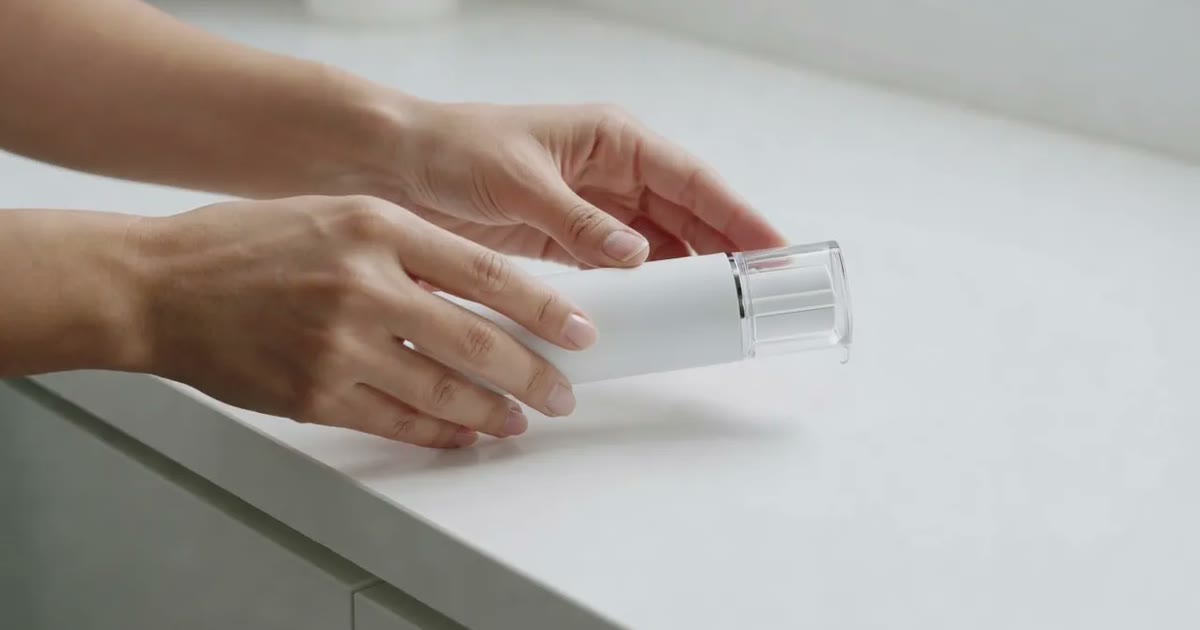
Product video
Product videos without filming: pick the format
Seven product video formats, from a how to clip to an unboxing to hands only, each with a real example, what it is for and when to pick it.
· 7 min read
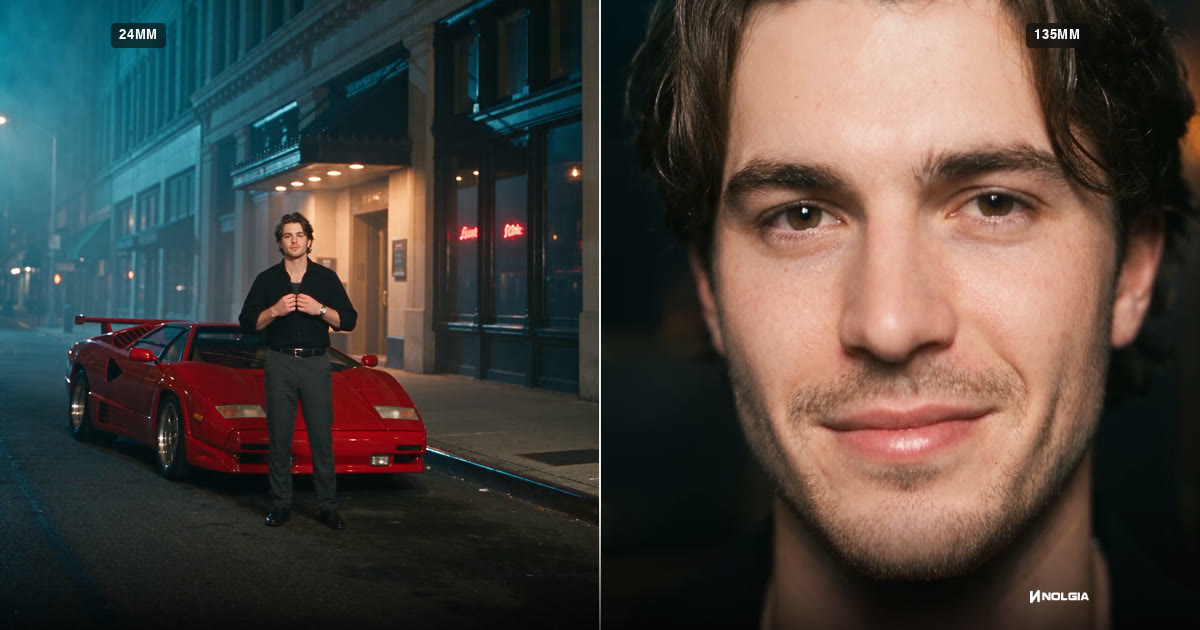
Filmmaking
Focal length for AI video: 24mm, 70mm, 135mm and 200mm
What 24mm, 70mm, 135mm and 200mm do to a frame, how to prompt each in Seedance 2.5, and how the focal length reel was made, with every prompt as it was sent.
· 15 min read