

Turn a photo into a video, three ways
Open the video composer, choose Animate an image, drop the photo in, write what moves and press Generate. That is the whole job. This guide animates one still three ways, shows what each way gave back, and lists which models take a photo, which take a start and an end frame, and which take a reference instead.
- 13 min read
- Preset: Cover reveal
One photo, three routes to a clip. The composer gives you every control, the agent takes one sentence and does the rest, and a preset turns the photo into a finished reveal with a few taps. All three ran on the same still, made for this guide with an image model, and every clip below is the real output of that run.
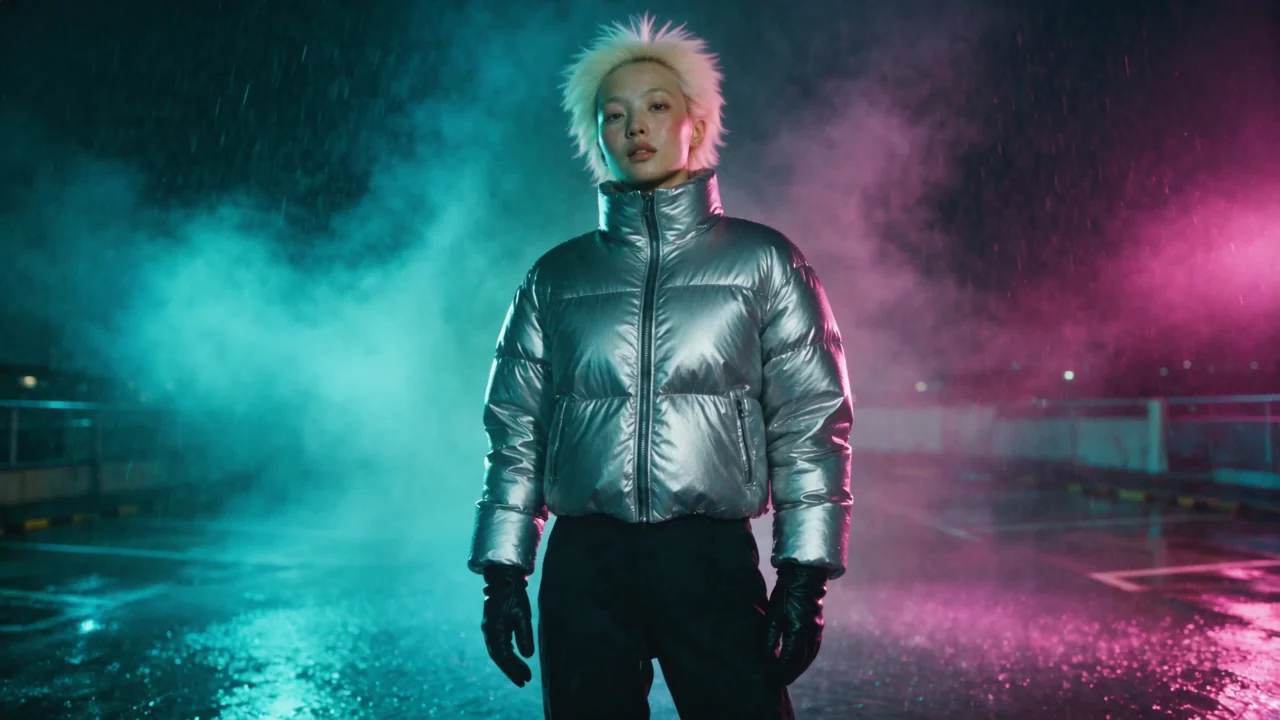
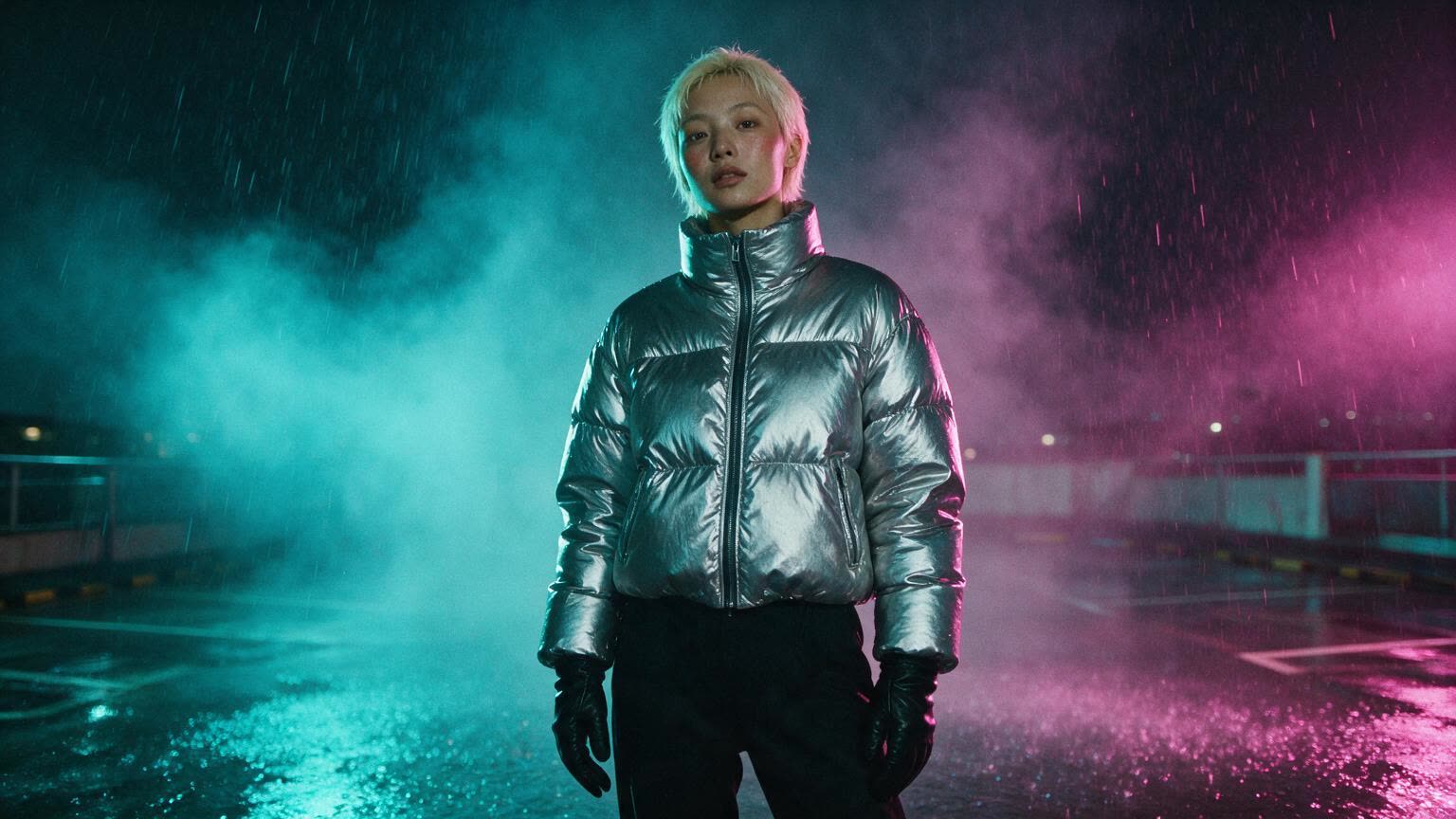
The still is a fashion film frame: a woman in a silver puffer on a flooded rooftop in the rain, lit cyan and magenta. Download it below and run the same three paths yourself.
Start with a still worth animating
A video model animates what it is given. A sharp photo with one clear subject, light that comes from somewhere, and room around the subject to move gives every path below a head start. A soft, cluttered or heavily filtered photo makes the model guess, and guessing is where limbs bend and faces smear.
We made this one on the image composer with Nano Banana Pro at 16:9. The prompt names the wardrobe, the place, the two light colours and the lens, and forbids text and logos, so nothing in the frame is a brand.
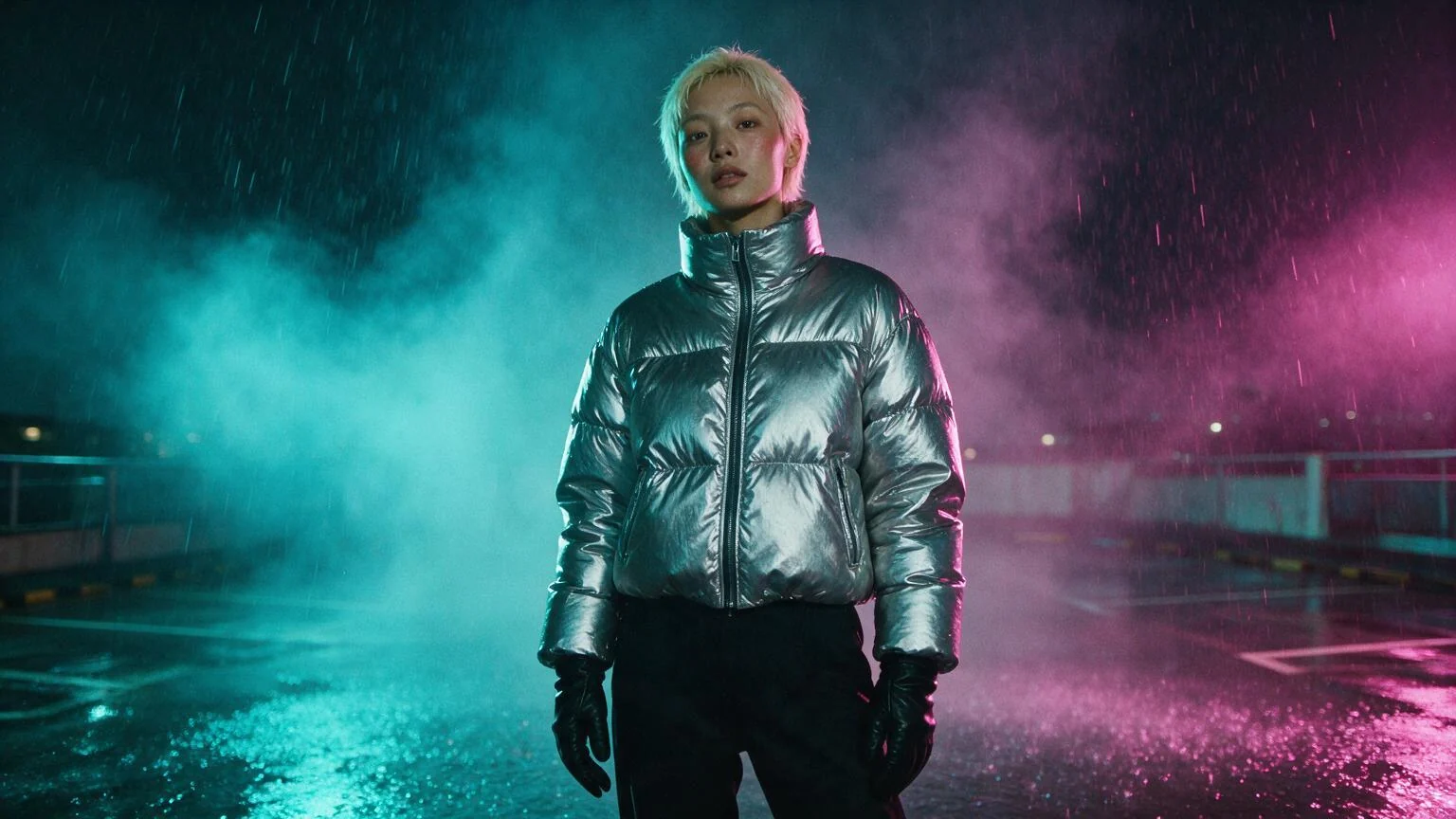
Fashion film still, 16:9, photoreal. A young East Asian woman with short bleached platinum hair stands alone on a flooded rooftop car park at night in heavy rain, wearing a silver metallic puffer jacket zipped up to the chin, black leather gloves and black trousers, hands relaxed at her sides. A cyan gel light from the left and a magenta gel light from the right, thick haze, a shallow sheet of rainwater at her feet reflecting both colours, rain streaks lit from behind. She looks just past the camera, calm and certain. Medium shot, 50mm lens, slightly low angle, shallow depth of field, hard contrast, deep blacks, film grain. An invented person, not a real person. No logos, no brand marks, no text, no signage.
Try it yourself
- The still (JPEG, 16:9)JPEG photo · 1536x864 · 132 KBDownload
What goes wrong
| Mistake | Why it fails | Fix |
|---|---|---|
| Writing the picture again in the motion prompt | The still already carries the look. Describing it again invites the model to redraw it. | Describe only what moves, what the camera does and what you hear. |
| Asking for everything to move | Rain, hair, hands, camera and a turn at once gives the model too many things to invent. | One subject action, one camera move, let the environment breathe. |
| Picking a model that does not take a photo | Text-only models ignore the upload or refuse the request. | Use the table further down: start frame means it takes your photo as frame one. |
| A cut or a new person in the prompt | A photo can only anchor the first frame. New shots and new people come from nowhere. | Say no cuts, no new people. One continuous shot from your still. |
| A vertical photo in a widescreen clip | The model has to invent the missing sides. | Match the clip's aspect ratio to the photo, or crop the photo first. |
Before you start
- Have the photo as a PNG, JPEG or WebP. The composer's upload takes exactly those.
- Decide the aspect ratio from the photo, not from the platform you will post on. Reframe afterwards in Studio if you must.
- Know the one move you want: a turn, a step, a breath, a camera push. Write that sentence before you open anything.
- Read the price on the Generate button before you press it. It is the exact charge for the settings you picked.
- Every path here works on Pro and up: the models that animate a photo sit on those plans.
Path 1, most control: the video composer
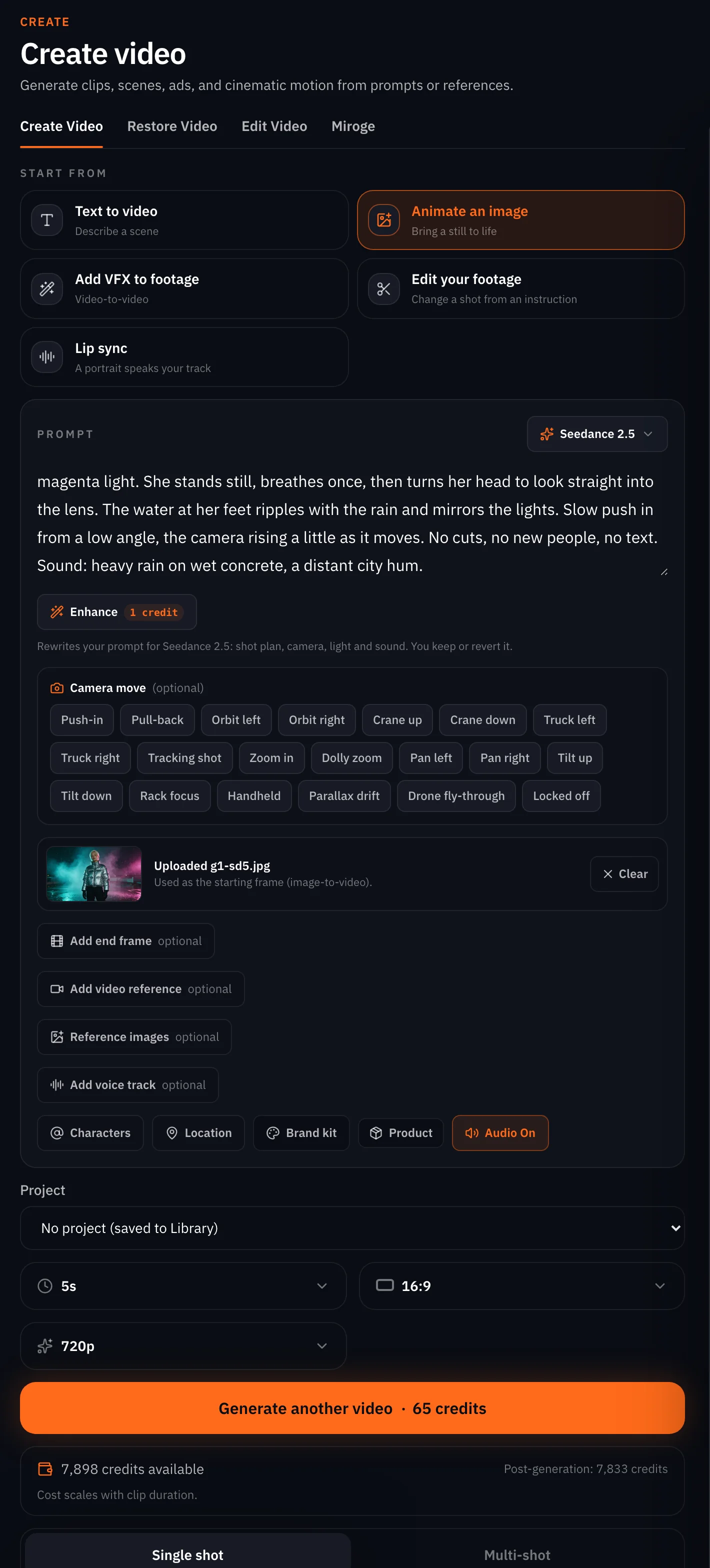
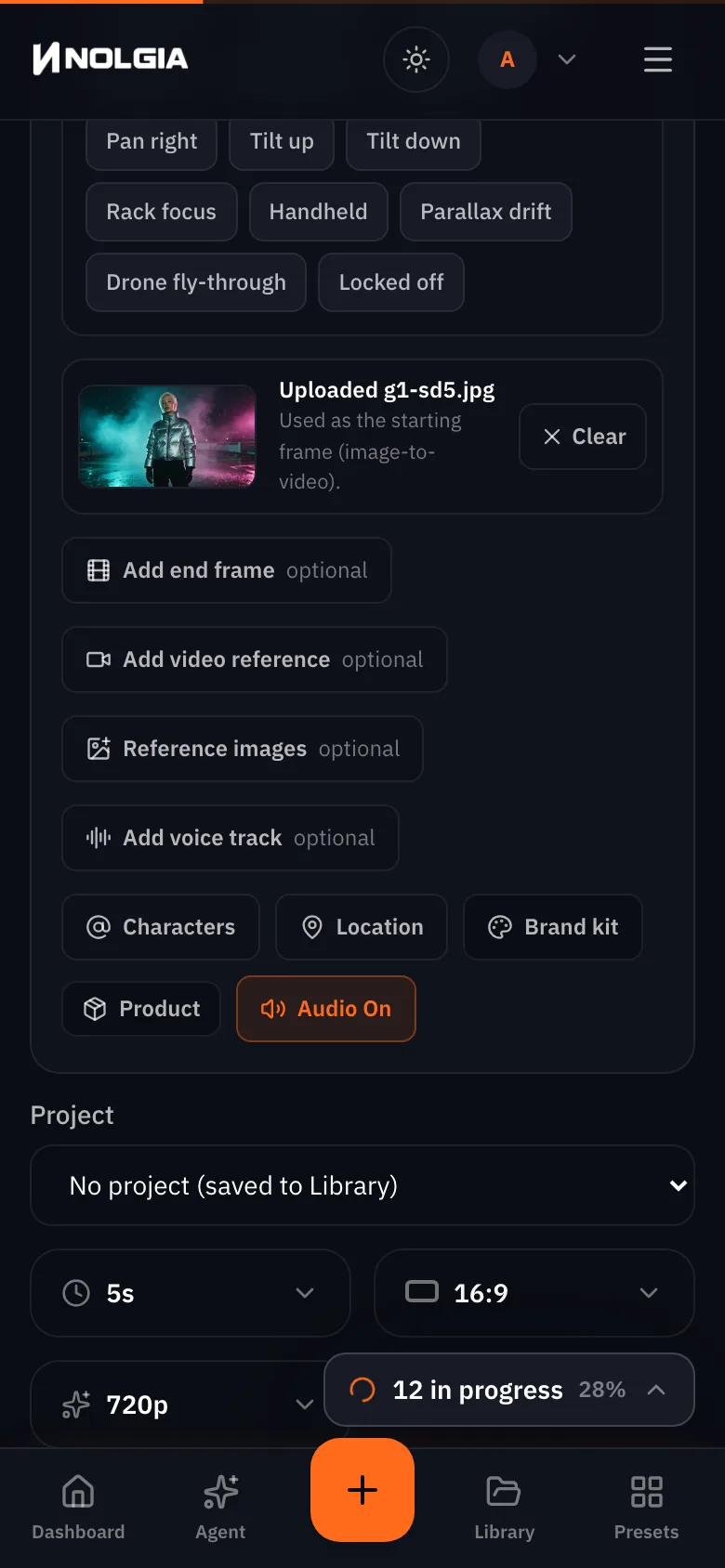
Open the video composer and choose Animate an image. Drop the photo in, or pick it from your library. Choose the model, set the aspect ratio, the duration and the quality, write the motion prompt and press Generate. The button shows the price for exactly those settings.
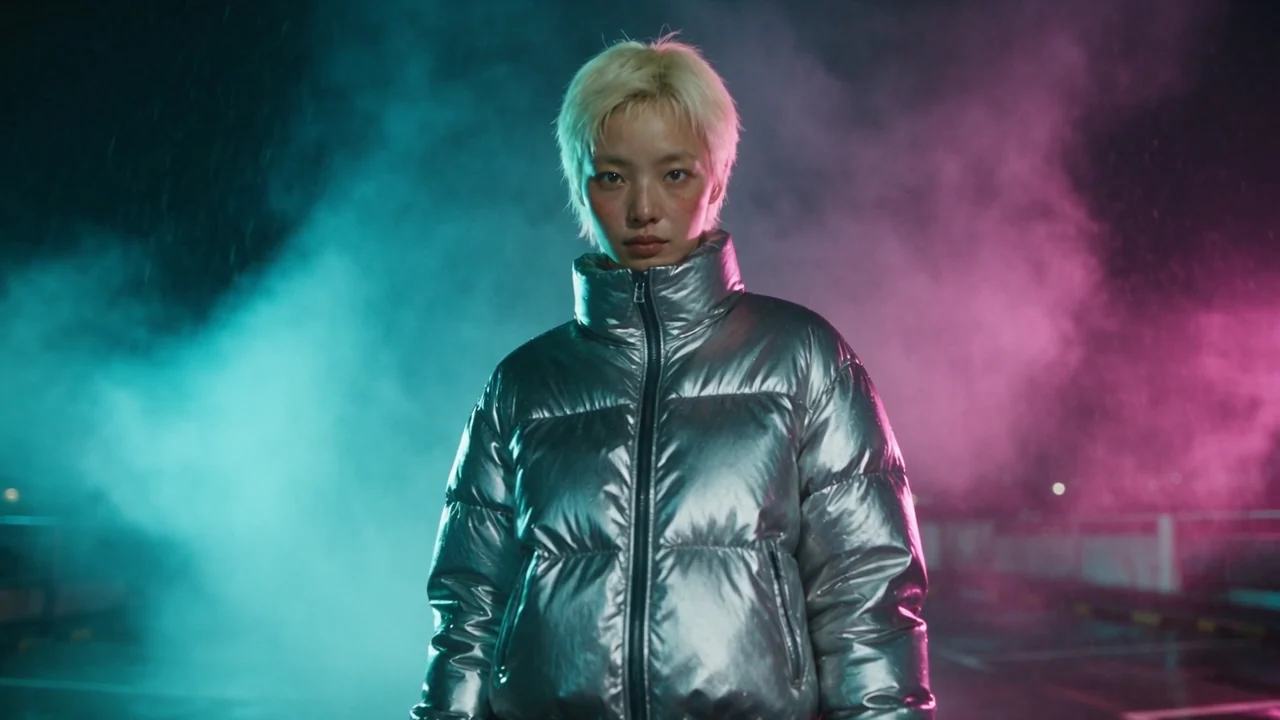
We used Seedance 2.5 at 720p, five seconds, 16:9, with audio on. It takes the photo as the first frame, so the woman, the rain and the lights are yours, and the model only has to move them.
Animate this still. The rain keeps falling and the haze drifts slowly through the cyan and magenta light. She stands still, breathes once, then turns her head to look straight into the lens. The water at her feet ripples with the rain and mirrors the lights. Slow push in from a low angle, the camera rising a little as it moves. No cuts, no new people, no text. Sound: heavy rain on wet concrete, a distant city hum.
Path 2, hands off: ask the agent
Open the agent, attach the photo with the paperclip and type one line. There is no plan to approve: the agent picks a model that takes a photo, writes the motion prompt itself, runs it, and answers with the finished clip and a link to it in your library. We asked for a draft tier and it took us at our word.
Animate this photo. Keep the rain, the haze and the coloured lights. She turns to look into the lens, slow push in, about five seconds, with sound. A draft quality tier is fine.
It chose H3 Max, the image variant, at the lowest quality tier, 5 seconds, and wrote this motion prompt from our line and the photo:
A slow, smooth push in on the woman standing in the falling rain under teal and magenta neon lighting on the wet rooftop. She turns her head to look directly into the camera lens. Rain and haze fill the atmosphere. Ambient sound of falling rain and city night ambience.
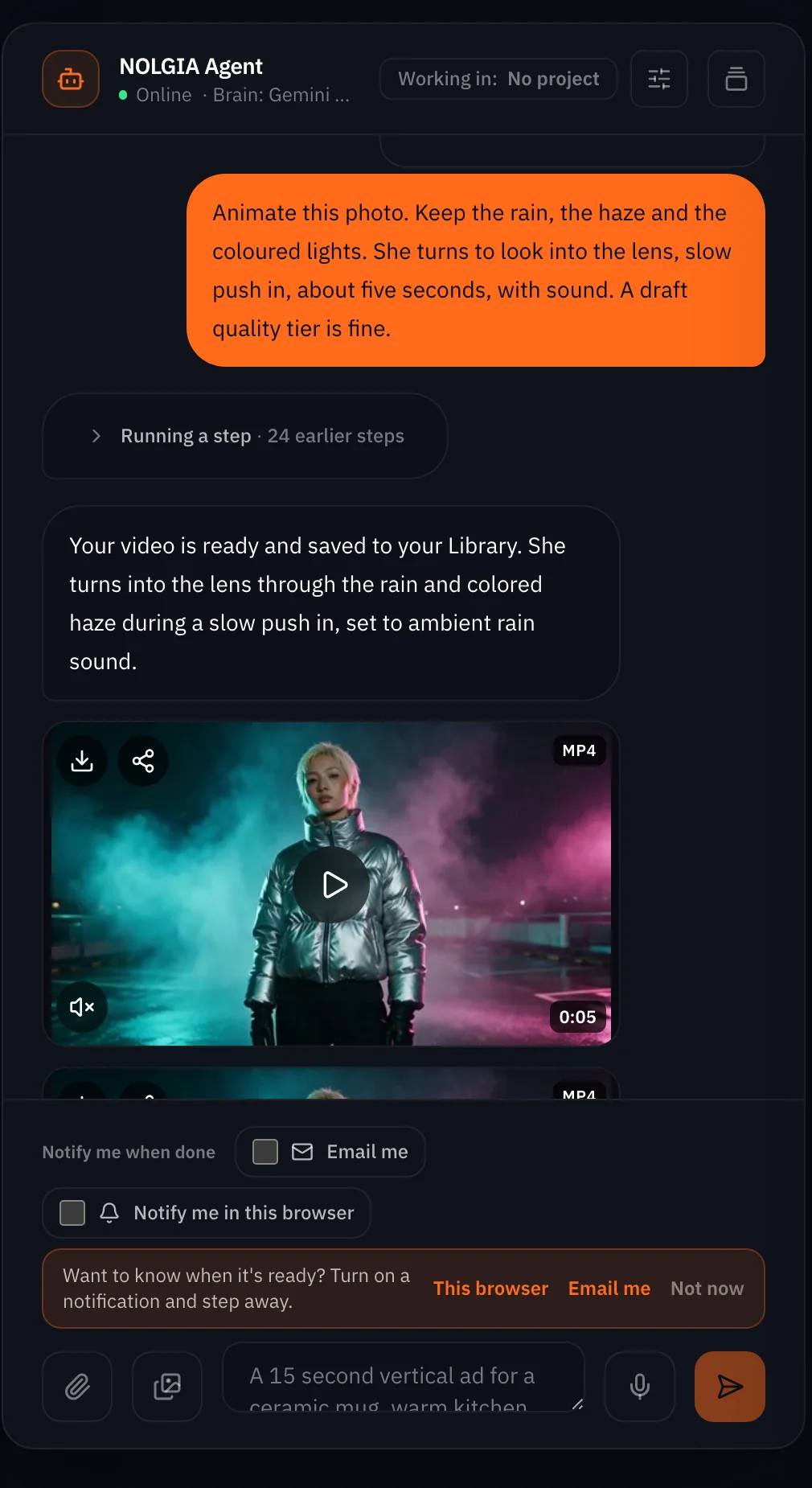
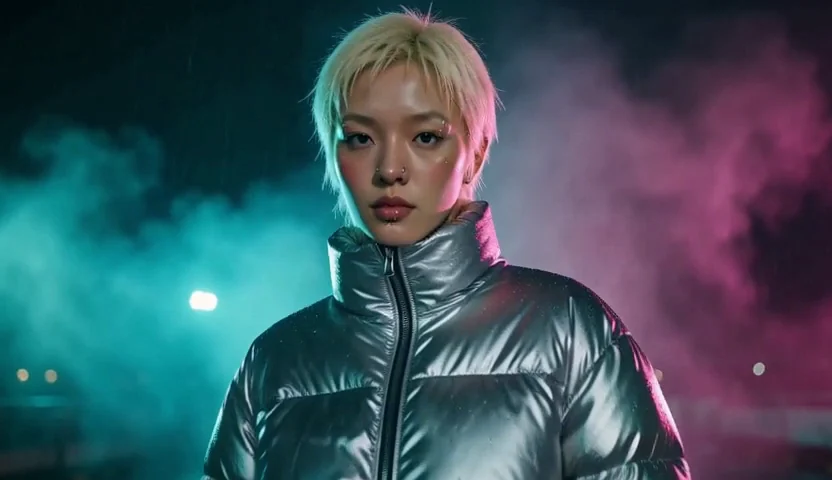
Watch for this:The agent's own turn is charged too, and a long chat costs more. You pay for the clip and for the agent's turn. We sent this line into a chat that already held a long conversation, and the turn cost several times what the draft clip did, billed as usage above the included rate. Start a new chat for a one-off job like this one, and the turn is a fraction of that.
Tip:Tell it what to keep, and what tier. The agent writes the prompt for you, so say in your line what must not change: the rain, the lights, the wardrobe. Say the tier too. Without it, the agent picks, and it may pick a bigger one than you wanted.
Path 3, fastest: a preset
Cover reveal is the preset that takes exactly one still and animates into it: the scene comes alive first and the clip lands on your photo as its last frame. Give it the still, pick how it moves (Slow push in, Parallax drift, Elements assemble, Light sweep, Focus pull or Living scene), pick the length, sound or silent, and whether it lands on the still or loops.
Make yours opens a guided chat that asks for one thing at a time. We gave it the still, skipped the words, chose Living scene and left the length, sound and ending at their defaults, which are five seconds, with sound, landing on the still. The review card shows every answer and an estimate for the clip before you press Create. Then the agent behind the preset writes the full prompt, renders the start frame and the clip, and replies with the result.
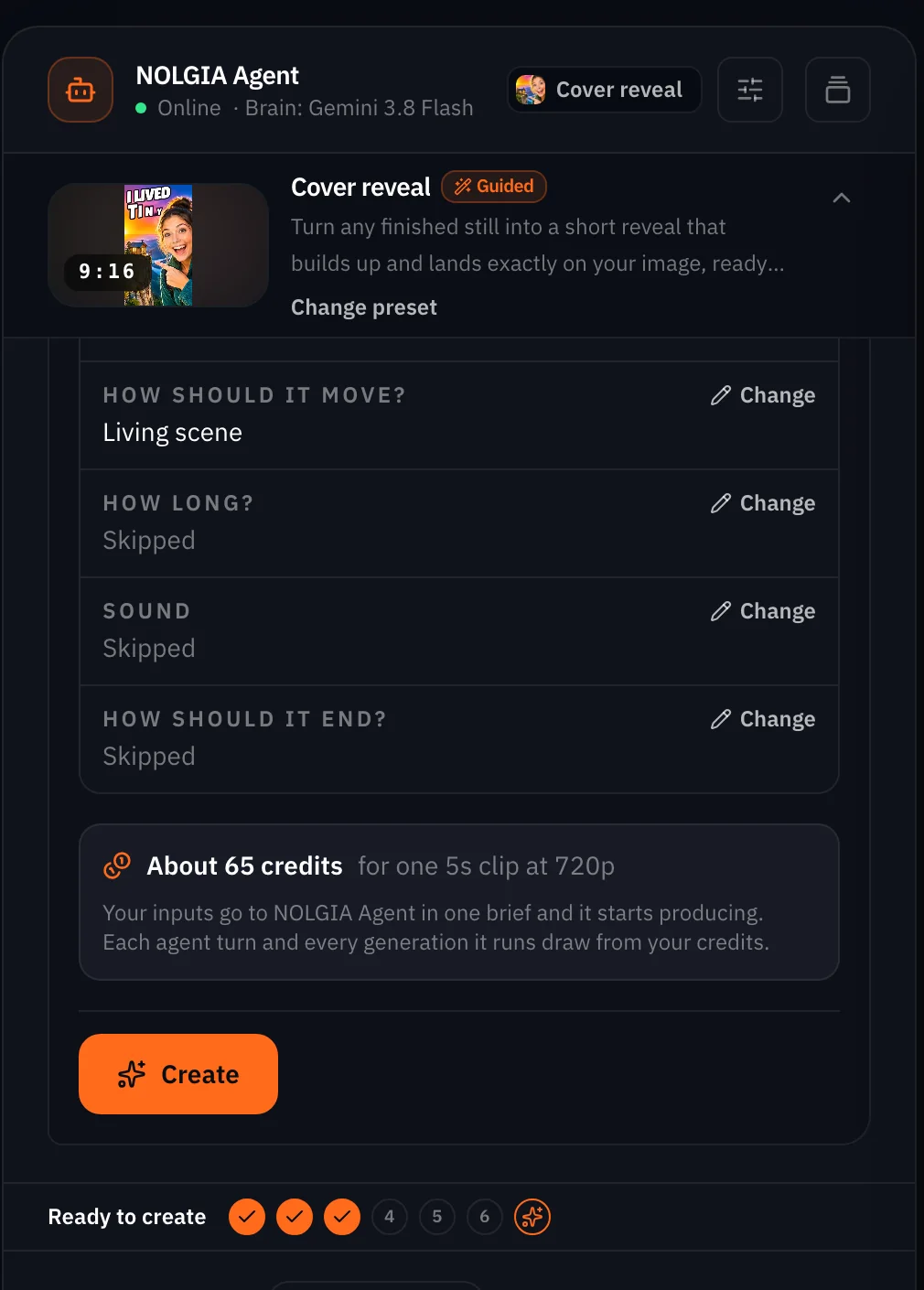
Watch for this:It is a reveal, not a free animation. The preset is built to end on your still. If you want the still to be the start and the motion to go somewhere new, use the composer.
Watch for this:The preset's agent turns are billed on top of the estimate. The review card estimates the clip. The turns the agent takes to write the prompt, render and reply are billed as well, and on our run they came to more than the clip did. Read the credit balance before and after your first preset run so you know what a run costs you.
Which models take a photo
Every video model on NOLGIA publishes what it accepts, and the composer reads that list live. Three things matter for a photo: a start frame (your photo is frame one), an end frame as well (the clip must arrive at a second photo), and reference images (the model looks at your photo and composes its own shot, so the first frame is not your picture). This is the catalog on the day of writing; the models page is the live version.
| Model | Start frame | Start and end frame | Reference images | Clip length |
|---|---|---|---|---|
| Seedance 2.5 | Yes | Yes | Up to 9, plus reference videos | 4 to 30 s |
| Seedance 2.0 Pro, Fast, Mini | Yes | Yes | Up to 9 | 4 to 15 s |
| Hailuo 3 | Yes | Yes | Up to 9, not with a frame | 4 to 15 s |
| H3 Max | Yes (image variant) | Yes | Up to 9 (text variant only) | 5 to 15 s |
| Hailuo 2.3 and 2.3 Fast | Yes (Fast requires it) | No | No | 6 or 10 s |
| Veo 3.1 and Veo 3.1 Fast | Yes | No | Up to 3, not with a frame | 4, 6 or 8 s |
| Veo 3.1 Lite | Yes | No | No | 4, 6 or 8 s |
| Kling 3.0, Pro, Master | Yes (image variant) | No | No | 3 to 15 s |
| Wan 2.7 | Yes | Yes | Up to 4 | 5 to 10 s |
| Wan 2.6, 3.0, 3.0 Prime | Yes | No | No | 5 to 30 s |
| Grok Imagine 1.5 | Yes | No | Up to 4 | 1 to 15 s |
| FLUX 3 Video | Yes | Yes | Up to 10, plus one reference video | 5 to 20 s |
Tip:Frame or reference: pick on purpose. Want the clip to open on your exact photo? Use it as the start frame. Want the model to shoot the subject from a new angle? Attach it as a reference instead. On Veo and Hailuo 3 you get one or the other, never both in one run.
Write the motion, not the picture
- Start with the verb. Turns, steps, breathes, looks up. The still is the noun.
- One camera move. Say it in the words the camera chip row uses: push in, orbit, crane up, tracking, or locked off. The composer's camera move chips append the exact fragment at the strength you pick, so you can leave the move out of your text and pick a chip instead.
- Say what stays. No cuts, no new people, no text. The model treats a missing rule as permission.
- Give the environment a slow life. Rain keeps falling, haze drifts, water ripples. It sells the clip without competing with the subject.
- Put sound last. One line that names the room and the loudest thing in it.
What it costs
You pay per clip, by length and quality tier, and the exact price sits on the Generate button before you press it. A request refused before the model runs costs nothing. The agent and the preset also bill the agent's turn, and the preset adds an image render for its start frame; its page quotes the whole run. These are the models the three paths used on our run: Seedance 2.5 in the composer and inside the preset, H3 Max from the agent.
- Cover reveal
Priced on the review card before it runs
Takes 3 to 6 min
Seedance 2.5Pro and up
Per 5s clip
480p 26 credits · 720p 56 credits · 1080p 137 credits
1080p renders at 16:9 and 9:16
H3 MaxPro and up
Per 5s clip
480p 14 credits · 768p 23 credits
Read live from the catalog when this page loads. Every price is shown before you generate. See every rate.
Where you still regenerate
- The turn. Three paths, three readings of the same sentence. The composer clip turns her eyes to the lens late; the agent's clip pushes in close and lands the look; the preset holds her pose and lets the scene breathe, because its job is to return to the still. If the turn is the point, write it as the first thing that happens, with a time marker.
- Hands and gloves. Fingers are the first thing to go wrong when a hand crosses the body. Keep hands still or out of frame on the first run.
- The reveal's lettering. Cover reveal is built for stills that carry words. Leave the words field empty for a photo with none, and check the last second for invented type.
- The agent's model choice. It picks a model that takes a photo and tells you which. If you wanted a specific one, say so in your line.
Checklist
- One sharp photo, PNG, JPEG or WebP, with room around the subject.
- Aspect ratio of the clip matches the photo.
- A model from the table that takes a start frame.
- A motion prompt that names one action, one camera move, what stays, and the sound.
- The price on the button read before you press it.
- Play the clip full screen once before you post it, and watch the hands.
Questions and answers
- Which path should I use first?
- The composer. It shows you the model list, the frame slots and the price, and a good first run there teaches you what to ask the agent for next time.
- Can I give it a second photo for the end?
- Yes, on the models with an end frame in the table: Seedance 2.5 and 2.0, Hailuo 3, H3 Max, Wan 2.7 and FLUX 3 Video. The clip opens on your first photo and arrives at the second.
- What is the difference between a start frame and a reference image?
- A start frame is frame one of the clip, pixel for pixel your photo. A reference image is studied, and the model composes its own shot from it. Veo and Hailuo 3 take one or the other in a run, not both.
- Does it work with a phone photo of a real person?
- The same paths take any photo. We ran this guide on an invented person made with an image model. We have not measured what happens to a real person's appearance in the clip, so we make no promise about it.
- Can I make it vertical for Reels?
- Pick 9:16 in the composer if your photo is vertical. If it is landscape, animate it at 16:9 and reframe the clip to 9:16 in Studio afterwards.
- Does the clip come with sound?
- On Seedance 2.5 you switch audio on or off. Veo and Hailuo 3 always render sound. The composer shows which on the model you pick.
Animate a photo of your own.
Open the video composerRelated guides
Prompting
Seedance 2.5: how to prompt it, with a library that was run
How to write for Seedance 2.5 on NOLGIA: text to video, a still as the start frame, a take as @Video1 with its sound, the six aspect ratios, 4 to 30 seconds, and what it refuses.
· 10 min read
Prompting
A prompt library: the exact prompts behind eight NOLGIA examples
Eight prompts copied from real NOLGIA renders, a film scene, a game trailer, a product film, a logo sting and more, each with the result and what makes it work.
· 8 min read
Filmmaking
Focal length for AI video: 24mm, 70mm, 135mm and 200mm
What 24mm, 70mm, 135mm and 200mm do to a frame, how to prompt each in Seedance 2.5, and how the focal length reel was made, with every prompt as it was sent.
· 15 min read