
Film assistant
Exploded view in Blender
Pull a product in your Blender scene apart so every part shows, then animate it coming back together.
Runs in Blender on your computer
- Best for
- Product launches, how it works videos and technical explainers.
- Runs in
- Blender 4.2 or later
- Time
- 10 to 20 min
- Cost
- The work in Blender is free. NOLGIA generation inside it is priced as usual.
Already have an account? Sign in
Create a free account and NOLGIA Agent opens with this preset. It works in Blender through the NOLGIA plugin.
Start it from your agent
Paste this into Claude Code, Claude Desktop, Cursor or any agent with NOLGIA connected, with Blender open. The agent follows NOLGIA's workflow for this preset step by step, and asks before it changes anything big.
Use NOLGIA to make an exploded view of the product in my open Blender scene: pull the parts apart so you can see how it fits together, then animate it assembling.
In Claude Code it is also a command: /mcp__nolgia__blender-exploded-view. Open in Claude needs NOLGIA added to Claude as a connector.
What it does
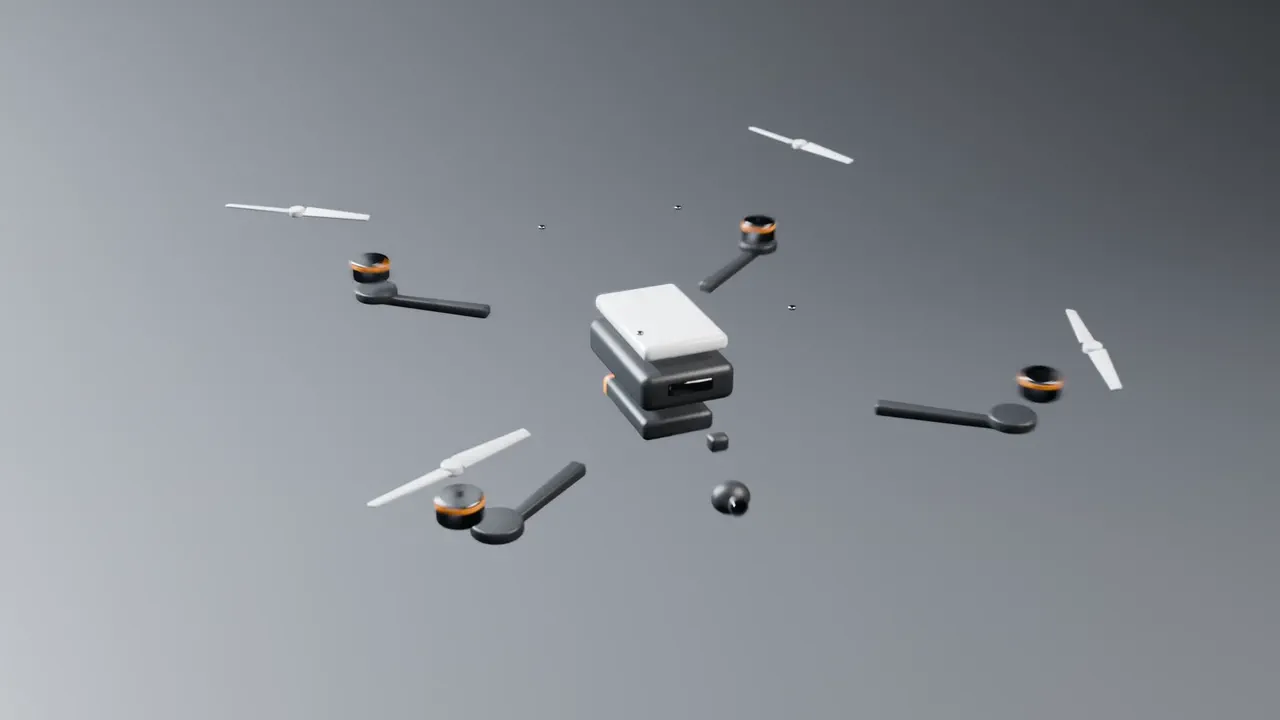
Show how something is built. The NOLGIA assistant moves the parts of your model out along the directions they would slide out, holds the exploded view, then puts them back together in a clear order, from the outside in.
Every part ends exactly where it started, and the assistant checks that before it finishes. One control sets how far everything spreads out, and each part's motion is ordinary keyframes you can move.
It works on a model made of separate parts. You need Blender 4.2 or later and the NOLGIA plugin for Blender. The work in Blender is free.
Use cases
- A launch video that shows what is inside a product
- A how it works clip for a gadget or a machine
- Assembly steps for a manual or a training video
The workflow
The written steps your agent follows in Blender, the same for every agent: the rules every Blender workflow keeps (a safety copy first, everything stays editable, a preview after each change), then this preset's own steps.
Read the workflow
Rules for every Blender workflow
These instructions are served to the agent with every Blender preset in the Film assistant category. The agent works through the NOLGIA Bridge tools (nolgia_app_*) on Blender running on the person's own computer.
Before anything changes
- Call
nolgia_app_status. If Blender is not listed, stop and tell the person in two lines: install the NOLGIA plugin for Blender from nolgia.ai/plugins/blender, then press N in the 3D Viewport, open the NOLGIA tab and sign in. Do not guess or continue without it. - Call
nolgia_app_info. Read what is really open: the file, the scene, frame range, fps, render engine, resolution, collections and cameras. Describe it back in one sentence so the person can correct you. - If the file has a path, make a safety copy first with a
nolgia_app_runthat callsbpy.ops.wm.save_as_mainfile(filepath=<same folder>/<name>_before_nolgia.blend, copy=True). If the file was never saved, ask the person to save it (File, Save As) before you start, and wait. - Ask only the questions the workflow lists. Offer a sensible default for each so the person can just say "go".
While working
- Change the scene in small steps: one
nolgia_app_runper logical step, each returning a short summary inresult(names created, counts, frame ranges). - Never delete, rename or move the person's existing objects, materials or collections unless they asked. Put everything you add in a new collection named after the workflow (for example
NOLGIA Destruction). - Keep everything editable: modifiers stay live, simulations stay as cache settings plus a bake, materials stay as nodes with the controls exposed on a labelled group or a clearly named node. No applied modifiers or joined meshes unless the workflow says so.
- After each visible change, call
nolgia_app_previewat a representative frame and look at the image before moving on. If it looks wrong, fix it before the next step. Do not describe a result you have not seen. - Long bakes and renders: run them, and if a tool hands back a
command_id, follow it withnolgia_app_commandinstead of starting it again. - If Python fails, read the traceback in
error, fix the code and try once more. After two failures on the same step, explain what failed in plain words and ask how to proceed.
Blender Python that bites
- Operators act on the view layer's active object and selection, and some (for example
bpy.ops.rigidbody.constraint_add) ignoretemp_override. Before every operator, setview_layer.objects.activeand the selection to exactly the objects you mean, and check afterwards that none of the person's own objects changed. - A driver that reads a custom property added in the same script can evaluate to 0. After adding properties and drivers, call
obj.update_tag()andbpy.context.view_layer.update(), then check every driver'sdriver.is_validand read one driven value back. - Never put keyframes and a driver on the same channel. Key a custom property instead and drive the channel from it.
- Names must be unique in a file: suffix actions, materials and objects you create per part with the part's name.
- Imported models arrive flat shaded and scaled to about 1 m: shade them smooth and scale them to real size. The GLB's Y-up to Z-up turn is stored as a quaternion, so
rotation_eulerreads 0: readrotation_quaternionor the world matrix. - Per-polygon Python loops over a large generated mesh can exceed the command time limit; read and write mesh data with
foreach_get/foreach_setand numpy instead. nolgia_app_exportrenders from the scene camera. To export from another camera, setscene.camerafirst and put it back afterwards.
Using NOLGIA where it helps
- Missing 3D models: generate them with
nolgia_generate_3dfrom a picture the person gives you (or one made withnolgia_text_to_image), then bring them in withnolgia_app_import. - Backgrounds, skies and texture plates: make them with
nolgia_text_to_imageand import them as images. - These generations cost credits: say what you are about to make and roughly what it costs (read it from the tool's estimate) before you run it. Work in Blender itself is free.
Finishing
- Save the file (
nolgia_app_runwithbpy.ops.wm.save_mainfile()), never over a different file. - Export a short preview with
nolgia_app_export(mp4for motion,pngfor a still) so the person has it in their NOLGIA library, and show the still. - Tell the person, in a few lines: what you built, where it lives in the scene (collection names), the one or two controls they are most likely to adjust and where those are, and the path of the safety copy.
Exploded view in Blender
Show how a product is built: the parts move apart along their natural axes so every part is visible, hold, then assemble back into the finished object in a clear order. Every part ends exactly where it started.
Ask
- Which object or collection is the product? (Default: the selected collection, else the collection with the most meshes.)
- Exploded, assembling, or both? (Default: both: explode 1.5 s, hold 1 s, assemble 2.5 s.)
- Anything that must stay fixed, like a base or a frame? (Default: the largest part stays put.)
- No model yet? Offer to make one: a photo of the product through
nolgia_generate_3dgives a single mesh; say plainly that a generated model is one piece and cannot be exploded into its real parts, so this workflow needs a model made of separate parts.
Build
- Record the truth first. Store every part's current world matrix as a custom property (
nolgia_home) so the final frame can be verified and restored. Do not change origins or apply transforms. - Order the parts. Group parts into layers from outside to inside by their distance from the product's centre and by nesting (a part whose bounding box sits inside another's is inner). Fasteners (small parts, many copies) go first on explode and last on assemble.
- Choose each part's direction. Move along the axis the part would slide out on: the axis from the product centre (the centre of the part that stays put, not the bounding box, which small parts like blades or antennas skew) through the part's centre, snapped to the nearest of the product's local axes when it is within 20 degrees. Distance grows with the layer so nothing overlaps: roughly 0.15 to 0.25 times the product's size per layer, then check for overlaps in the exploded pose and push apart any pair whose bounding boxes intersect.
- Animate. Give each part a custom property
explode(0 home, 1 fully out) and keyframe that: home, exploded, hold, home. Drive the part's location from it: home position plus direction times layer distance timesexplodetimes theExplode distancevalue on an emptyExploded View Controls. Do not keyframe location itself, and do not drivedelta_locationfrom the part's own location (that is a dependency cycle and the offset silently does nothing). Stagger parts in the same layer by 2 to 3 frames so the motion reads as a sequence. Use ease in and out (Bezier, auto clamped) and a slight overshoot-free settle on assembly. Name each part's actionNOLGIA Exploded view <part name>. - Guides (optional, ask). Thin lines or dashed curves from each part's home to its exploded position, visible only during the hold.
- Camera and light. A three-quarter camera slightly above the product, framing the exploded pose with 15 percent margin, with a slow orbit of 20 to 30 degrees over the shot. Keep the camera at least 15 degrees away from every explode direction, so no part moves straight toward or away from the lens. A soft key light, a rim light and a neutral studio floor or backdrop in the
NOLGIA Exploded viewcollection. Leave the person's lights alone; if they have their own, ask before adding.
Check
- On the final frame, every part's world matrix must match
nolgia_hometo within 0.0001. Verify this in code and report it. - Preview the exploded hold: no two parts may overlap, every part visible from the camera, nothing leaving the frame.
- Preview the midpoint of the assembly: motion reads outside to inside.
Deliver
Save, export an mp4 preview, and tell the person: how the layers were ordered, how to change the explode distance (Explode distance on Exploded View Controls scales every offset), and how to reorder a part (move the keyframes on its explode value).
Try it in Blender.
Install the free NOLGIA plugin for Blender, sign in, then ask your agent.