
Film assistant
BetaOrganize a Premiere Pro project
Sort the loose media in your Premiere Pro project into bins by shooting day and type, line up picture and sound by timecode, and make clearly named sequences.
Runs in Premiere Pro on your computer
- Best for
- Starting an edit on a shoot with many cards, several days and a separate sound recorder.
- Runs in
- Premiere Pro 25.0 or later
- Time
- 10 to 30 min
- Cost
- The work in Premiere Pro is free. NOLGIA generation inside it is priced as usual.
Already have an account? Sign in
Create a free account and NOLGIA Agent opens with this preset. It works in Premiere Pro through the NOLGIA plugin.
Start it from your agent
Paste this into Claude Code, Claude Desktop, Cursor or any agent with NOLGIA connected, with Premiere Pro open. The agent follows NOLGIA's workflow for this preset step by step, and asks before it changes anything big.
Use NOLGIA to organize my Premiere Pro project: sort the media into bins by shooting day and type, line up picture and sound by timecode where it is reliable, and make clearly named sequences, without touching my original files or edits.
In Claude Code it is also a command: /mcp__nolgia__premiere-project-sorter. Open in Claude needs NOLGIA added to Claude as a connector.
What it does
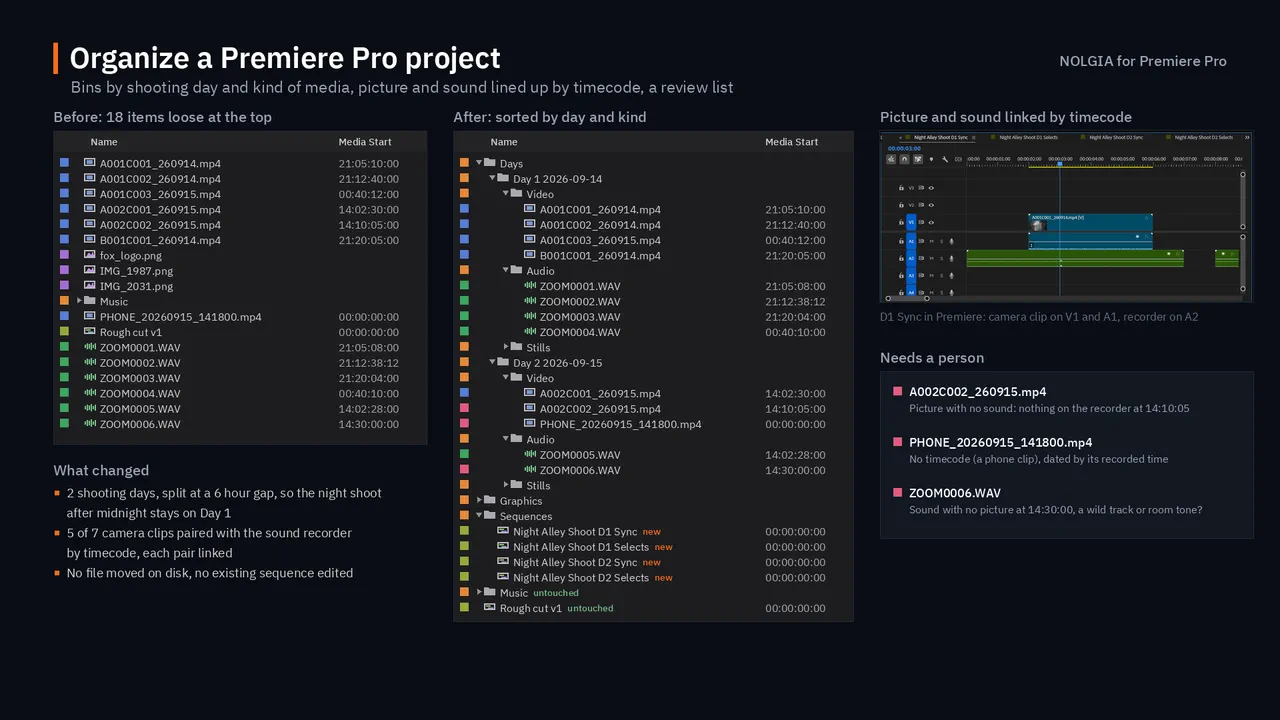
Turn a project full of loose media into one an editor can start on. The NOLGIA assistant takes stock of every clip, works out the shooting days from the recorded dates and timecode, and shows you a plan before it moves anything. Then it sorts the clips into bins by day and by kind (video, audio, stills), lines up camera clips with separately recorded sound where the timecode makes that reliable, and makes clearly named sync and selects sequences for each day.
Nothing on disk changes: bins organize the project, not your files. Your own bins and sequences keep their names and edits, the number of clips is checked at the end, and a safety copy of the project is saved first. Clips that need a person's eyes, like a take with no sound, get a red label and a short reason.
You need Premiere Pro 2025 or later and NOLGIA for Adobe. The work in Premiere Pro is free.
Use cases
- Organizing a shoot of several days before the edit
- Lining up camera clips with sound from a separate recorder
- Handing a clean, well named project to an editor
The workflow
The written steps your agent follows in Premiere Pro, the same for every agent: the rules every Premiere Pro workflow keeps (a safety copy first, everything stays editable, a preview after each change), then this preset's own steps.
Read the workflow
Rules for every Premiere Pro workflow
These instructions are served to the agent with every Premiere Pro preset in the Film assistant category. The agent works through the NOLGIA Bridge tools (nolgia_app_*) on Premiere Pro running on the person's own computer. Code for nolgia_app_run is ExtendScript.
Before anything changes
- Call
nolgia_app_status. If Premiere Pro is not listed, stop and tell the person in two lines: install NOLGIA for Adobe from nolgia.ai/plugins, then open Window > Extensions > NOLGIA in Premiere Pro and sign in. Do not guess or continue without it. - Call
nolgia_app_info. Read what is really open: the project file, its bins with item counts, the sequences (size, frame rate, length, tracks) and the active one. If it says no project is open (Premiere's Home screen), ask the person to open the project and wait. Describe what you see in one sentence so the person can correct you. - Make a safety copy first with
nolgia_app_exportformatprproj(it copies the project as last saved, next to it, and never overwrites a file). Premiere does not report unsaved changes to scripts, so ask the person to save first (or save withnolgia_app_saveonce they agree), then copy. - Ask only the questions the workflow lists. Offer a sensible default for each so the person can just say "go".
While working
- Work in small steps: one
nolgia_app_runper logical step, each returning a short summary inresult(bin paths, item counts, sequence names). Premiere has no undo group for scripts, so each step should be easy to reverse by hand: prefer making new bins and sequences over changing existing ones. - Never delete media, never relink, rename or re-time the person's clips, and never edit an existing sequence. To work from an existing sequence, duplicate it (
sequence.clone()) and work on the copy. - Media files stay where they are: bins organise the project, not the disk.
- After each visible change, check it:
nolgia_app_infofor bins and sequences,nolgia_app_preview(withsequenceandframe) for pictures. Do not describe a result you have not seen. - Exports run on the person's computer:
nolgia_app_exportmp4renders a sequence with the H.264 Match Source preset and can take minutes. If a tool hands back acommand_id, follow it withnolgia_app_commandinstead of starting it again. - If code fails, read the error (it names the line and shows it), fix the code and try once more. After two failures on the same step, explain what failed in plain words and ask how to proceed.
ExtendScript that bites (Premiere Pro)
- It is ES3: no
let,const, arrow functions, template strings,Array.prototype.indexOf,maporforEach, and noJSONobject. Words ES3 reserves (short,int,class,char,final,native...) cannot be variable names. Return data by settingresult(or as the last expression). - Collections count from 0 and use
numItems(bins, clips, track items) ornumSequences/numTracks:bin.children[i]for i <bin.children.numItems. - Times are Time objects:
.seconds, and.ticksas a string, 254016000000 ticks per second. A sequence's frame length in ticks issequence.timebase. Without in and out points,getInPointAsTime()answers a large negative time. app.project.importFiles(paths, true, bin, false)answers only true or false. Find what it imported by path afterwards (item.getMediaPath()).bin.createBin(name)makes a bin;item.moveBin(bin)moves an item. Sequences are project items too (item.isSequence()).- Read clip facts from the project item:
getMediaPath(),getFootageInterpretation()(frame rate),startTime()(the media's start timecode as a Time: a camera's timecode track, or a sound recorder's BWF time), and the XMP ingetXMPMetadata()(text to search with a regular expression:xmp:CreateDatefor video; WAV files usually have none). A file's modified date (new File(path).modified) changes when media is copied: use it only when nothing better exists, and say so. - Colour labels are numbers into the person's label set: in Premiere's defaults 1 is Iris (blue, what video clips get), 6 Rose (red), 7 Mango (orange, bins). Read
getColorLabel()before you rely on one. - Premiere cannot merge clips or run "Synchronize" from a script. To sync picture and sound, place them on a sequence at positions computed from their timecode (
track.overwriteClip(item, seconds)), then select the pair andsequence.linkSelection(). app.project.createNewSequenceFromClips(name, items, bin)takes its settings from the first clip. The QE DOM (app.enableQE(),qe.*) is unofficial: use it only for what the regular DOM cannot do.- A modal dialog in Premiere (a missing media prompt, a conversion question) holds every script until someone closes it. If a command sits in
runningfor no reason, ask the person to look at Premiere Pro.
Using NOLGIA where it helps
- Premiere work is mostly organising and cutting the person's own media; generation is rarely needed. When it is (a missing establishing shot, room tone, a temp music bed), make it with
nolgia_text_to_video,nolgia_text_to_audioornolgia_text_to_imageand bring it in withnolgia_app_import. - These generations cost credits: say what you are about to make and roughly what it costs before you run it. Work in Premiere itself is free.
Finishing
- Save the project (
nolgia_app_save), never over a different file. - Export what the workflow asks for with
nolgia_app_export(mp4of a sequence, orpngof a frame) so the person has it in their NOLGIA library. - Tell the person, in a few lines: what you built, where it lives (bin and sequence names), anything that needs their eyes, and the path of the safety copy.
Organize a Premiere Pro project
Turn a project full of loose media into one an editor can start on: bins by shooting day and by kind of media, picture lined up with the separately recorded sound where the timecode makes that reliable, clearly named sequences, and a short list of what needs a person's eyes. Nothing on disk changes and no existing sequence is edited.
Ask
- Which media to sort: everything loose at the top of the project (default), a bin they name, or everything including their own bins (then ask before moving anything out of a bin they made).
- How to tell the shooting days: from each clip's recorded date (default), from folder names on disk (
Day 2, card folders), or from a list they give you. - Is there separately recorded sound (a recorder, files named like
ZOOM0001orT001) that should be lined up with the picture? Were the camera and the recorder jammed to the same timecode? (Default: line up by timecode only where both carry it.) - A naming style for sequences. (Default:
<Project> D1 Sync,<Project> D1 Selects.)
Build
- Take stock without changing anything. One
nolgia_app_runthat walks the chosen bins and returns, for each item: name, media path, kind (video, audio, still, graphic, sequence), duration, frame rate, start timecode in seconds (startTime().seconds: it reads a camera's timecode track and a sound recorder's BWF time), recorded date (xmp:CreateDateingetXMPMetadata()), and the file's date (new File(path).modified, a guess). Keep the total count: it must be the same at the end. - Plan, then wait. Put the clips in time order and split them into days where there is a gap of 6 hours or more, not at midnight, so a night shoot that runs past midnight stays one day. Take the date from
xmp:CreateDateand the time of day from the timecode (cameras often write local time with aZ, as if it were UTC; if the dates and timecodes disagree, ask). Sound files rarely carry a date: they belong to the day whose picture their timecode overlaps, else the day of their file date. Stills usually have only a file date: use it, and say so. Name daysDay 1 2026-03-14and so on, with kind bins inside each:Video,Audio,Stills. Graphics (logos, titles) are not shot on a day: oneGraphicsbin at the top. Show the plan as a short table (bin, number of clips) and wait for a yes. - Make the bins and move the clips. A bin
Daysat the top with a bin per day inside and the kind bins inside each day;item.moveBin(bin)moves a clip without changing it. Leave the person's own bins and existing sequences where they are. - Line up picture and sound. Premiere cannot merge clips or run Synchronize from a script, so say plainly that you line them up on a sequence instead. Pair a camera clip with a sound file when their timecode ranges overlap by at least half the clip and the frame rates agree. For each day with pairs, make a sync stringout
<Project> D1 Sync(from the first video clip's settings, then remove what it placed): pairs one after another with a second between them, the sound file on A2 at the pair's start and the picture on V1 after it by the difference of their start timecodes (or the other way round when the picture starts first).track.overwriteClip(item, seconds)puts a camera clip's picture on V1 and its own sound on A1. Select the three items andsequence.linkSelection();getLinkedItems()confirms. Laying clips out at their raw timecode instead leaves hours of empty timeline between takes. - Name the rest of the sequences. An empty
<Project> D1 Selectsper day for the editor, and all new sequences in a binSequencesat the top. Existing sequences keep their names and edits. - The review list. Give every clip that needs a decision the red label:
item.setColorLabel(6)(Rose, in Premiere's default labels; 1 is Iris, the blue video clips already have). Keep the reason: no timecode, picture with no sound when others that day have it, sound with no picture, two possible sound files, a frame rate that differs from the day's. Clips placed only by their file date are reported, not labelled.
Check
nolgia_app_info: the bins match the plan, and the number of clips is the same as at the start (nothing lost, nothing duplicated).- Every media path is unchanged, and every existing sequence has the same length and track counts as before (compare with the stock you took).
- Preview a frame from each sync sequence (
nolgia_app_previewwithsequence) to see the picture is there. You cannot hear the sound: say that sync was set by timecode and ask the person to check one clap or cue per day.
Deliver
Save the project. Tell the person: the bin structure with counts, the sync sequences made and how many pairs each holds, and the review list (clip name and reason), in a few lines each. Optionally export a png of the first sync sequence's first frame with nolgia_app_export so they can see it in their NOLGIA library.
Try it in Premiere Pro.
Install the free NOLGIA plugin for Premiere Pro, sign in, then ask your agent.