

Restore soft, noisy or old footage
A restore cleans up what is wrong with a clip. It cannot bring back what the camera never recorded, and the engine that looks sharpest is not always the one closest to the truth.
- 6 min read
Restore Video takes a clip that is already in your Library, an upload or a render, and renders it again at the resolution you choose, with the noise, compression blocks and softness cleaned up. There is no prompt: the clip and the engine you pick are the whole input.
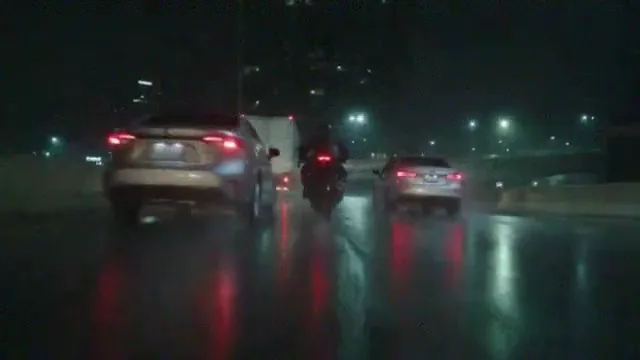
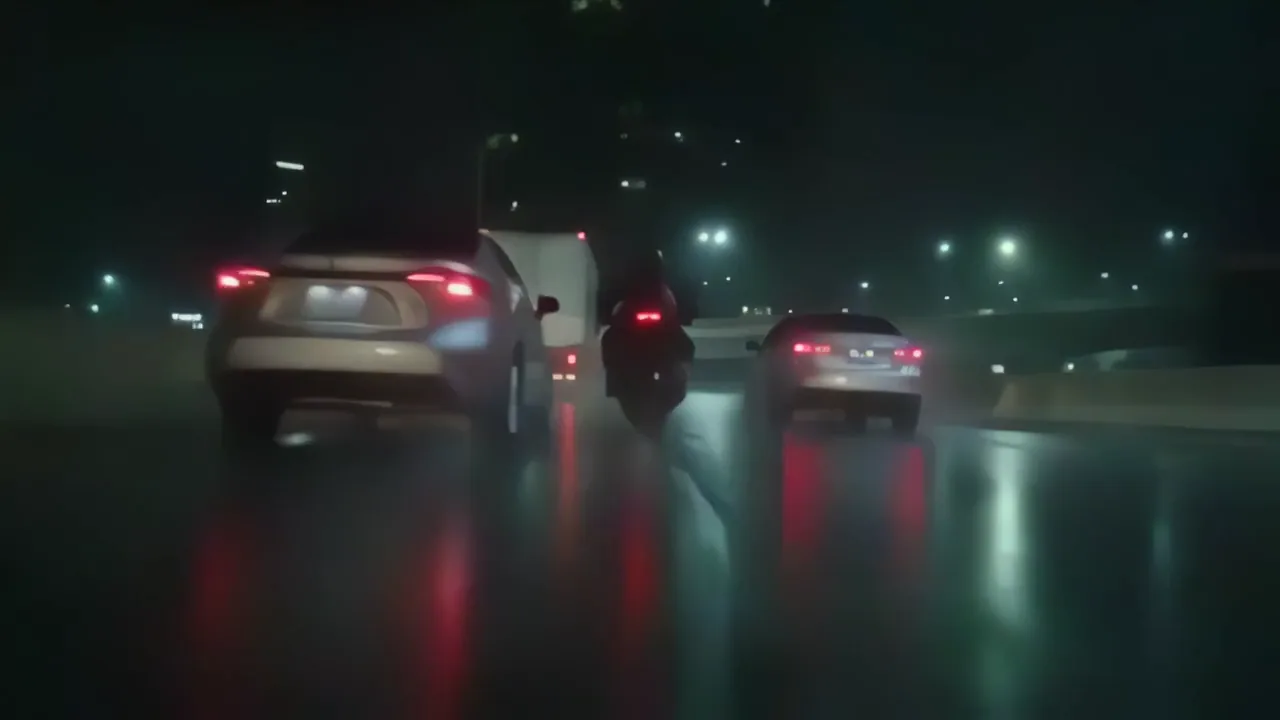
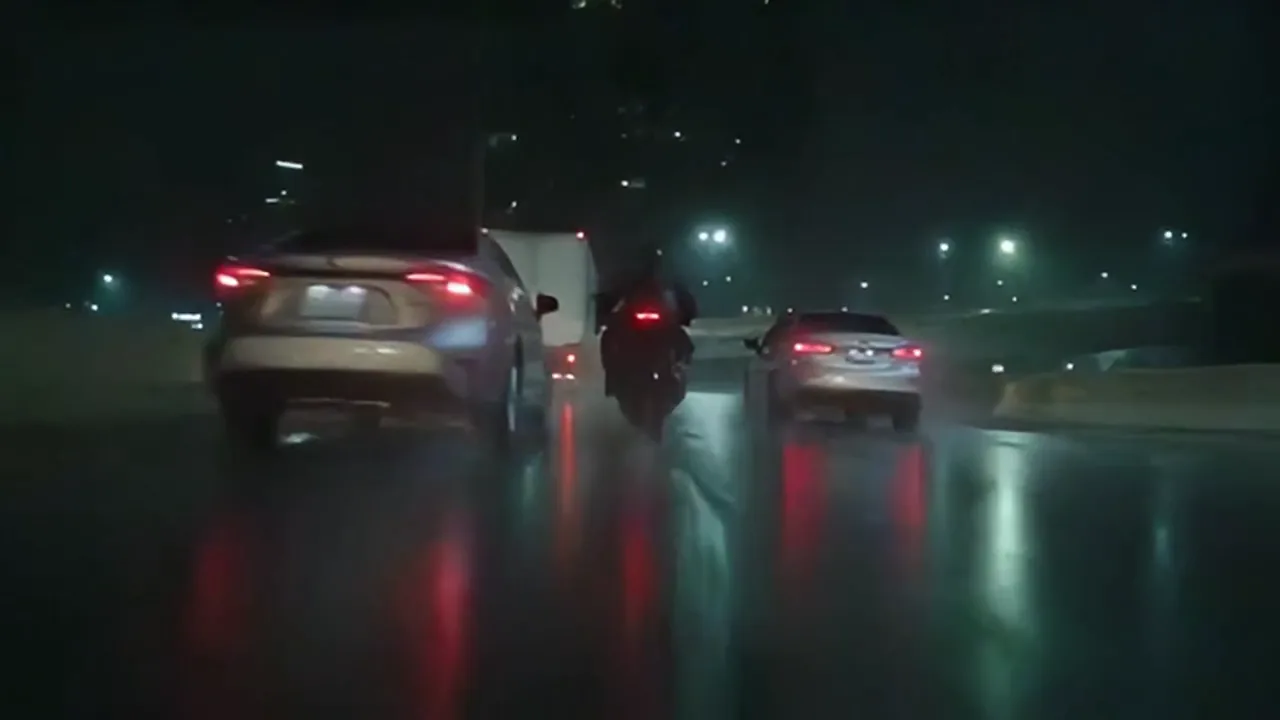
To show what each engine does, we took the night motorcycle take from the Film scene preset, shrank it to 360p and buried it in grain and heavy compression, then restored the damaged copy four ways. Because we still had the clean original, we could score every result against it.
Put the clip in your Library
Restore works on a video in your Library. Upload the clip, or use one you made on NOLGIA, then either open Restore Video and pick it under Source, or press Restore and upscale on the clip's own page. The console reads the clip's size, length and frame rate for you.
A clip can be 1 to 120 seconds long. The restored clip keeps the source's aspect ratio, so a vertical clip comes back vertical.
Name what is wrong with it
The console groups its engines by the problem they fix, and each card carries a one-line description. Start from the problem, not the engine:
| What is wrong | Group in the console | Start with the card that says |
|---|---|---|
| Small, soft or low resolution | Up-res and detail | General live action. Start here |
| Grain or sensor noise | Denoise | Severe noise or grain, or Denoise plus detail |
| Blocky, smeared or over-compressed | Compression damage | The roughest sources, or Moderately compressed |
| Faces are the soft part | Faces | Faces, from a rough source |
| Combing lines from tape or broadcast | Interlaced footage | Broadcast, VHS, DVD and SD, or Camcorder tape |
| Blur from fast movement | Fixes that are not up-res | Blur from fast movement |
| Clean but not sharp enough | Generative restoration | The fast pass |
SeedVR2 Restore sits in Up-res and detail as "Soft, noisy or small footage". It is the one engine with a Detail strength slider: higher recovers more texture and invents more, so keep it low when the clip has to stay faithful.
Pick the resolution you will deliver
Choose a tier from 720p up to 2160p, or 4320p (8K) on the engines that offer it. The tier names a resolution class, and the clip keeps its own shape inside it.
Before you start, the console shows the most the run can cost for your clip's length and the tier you picked. You are charged the lower of the metered cost and that published rate.
Tip:Some engines cost the same at every size. A denoise, a motion deblur or an HDR pass does not enlarge anything, so the price is the same at 720p and at 4K. The console says so on those engines. Ask for the size you want to deliver.
Compare the result with your source
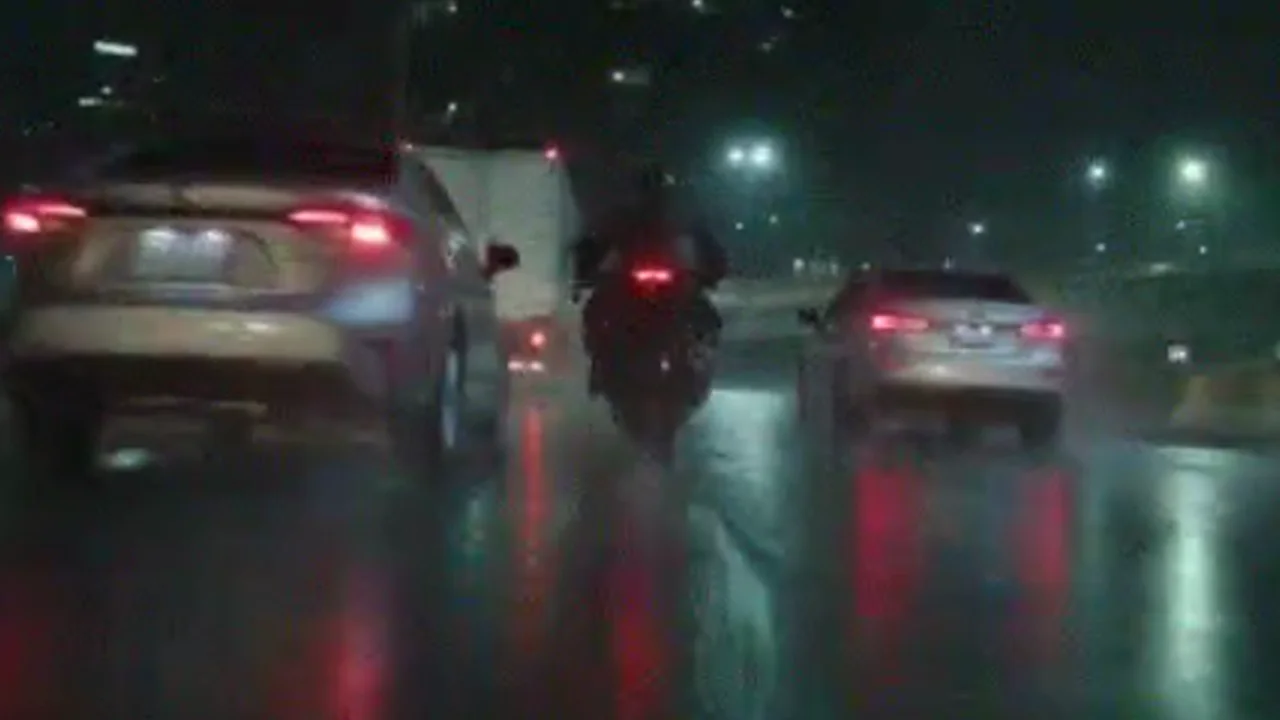
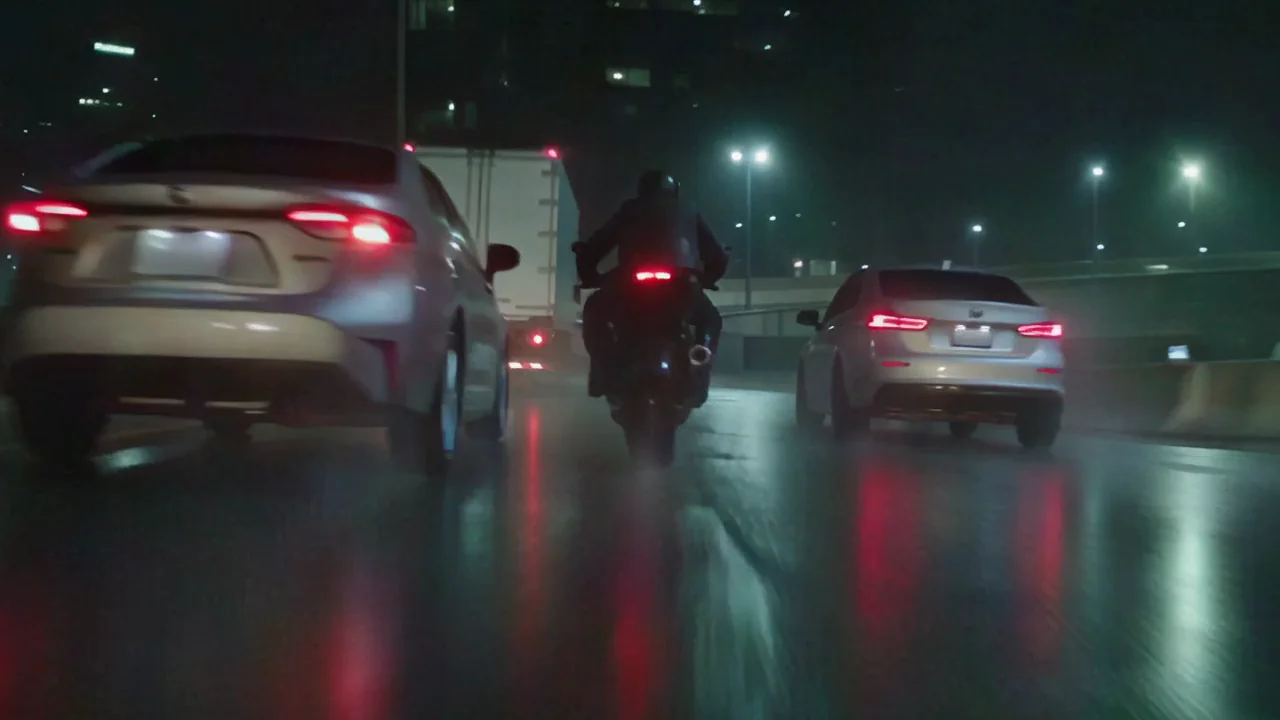
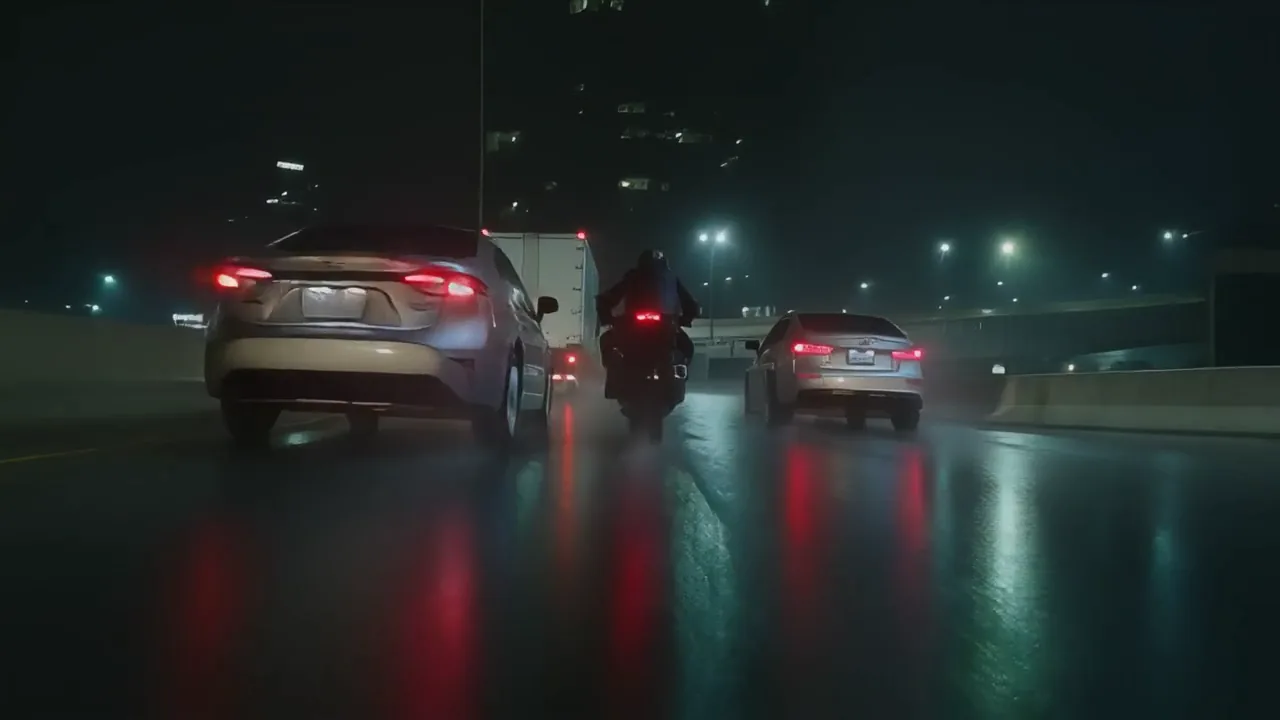
Here is the same frame from the damaged copy and from SeedVR2 Restore at 1080p, cropped at full size. Drag the line to compare.
 Damaged 360pSeedVR2 Restore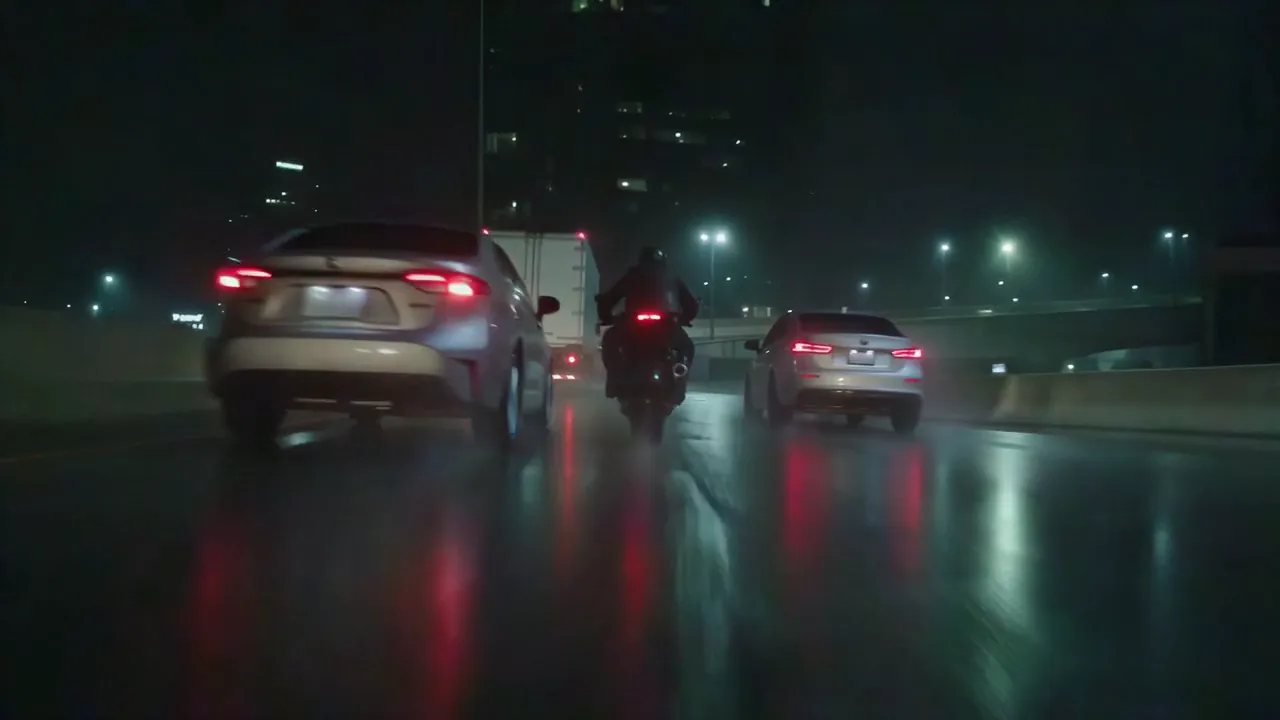
What we measured
We scored every result against the clean original, frame by frame, with two standard measures of how close one picture is to another. On both, higher is closer.
| Clip | SSIM | PSNR |
|---|---|---|
| The damaged copy, just enlarged | 0.944 | 34.4 dB |
| SeedVR2 Restore | 0.963 | 36.6 dB |
| General live action. Start here | 0.960 | 35.5 dB |
| Severe noise or grain | 0.957 | 35.0 dB |
| The fast pass, generative | 0.950 | 33.6 dB |
- Every engine removed the grain and the compression blocks, and every result scored closer to the original than the damaged copy on SSIM.
- The sharpest looking result was the furthest from the truth. The generative pass scored lowest of the four on both measures, and below the damaged copy on PSNR: the crisp detail it adds is invented, not recovered. Look at the rear of the white car in the crop below.
- Nothing brought back the rain. The original has fine streaks of rain across the frame. The damaged copy lost them, and no engine drew them back.
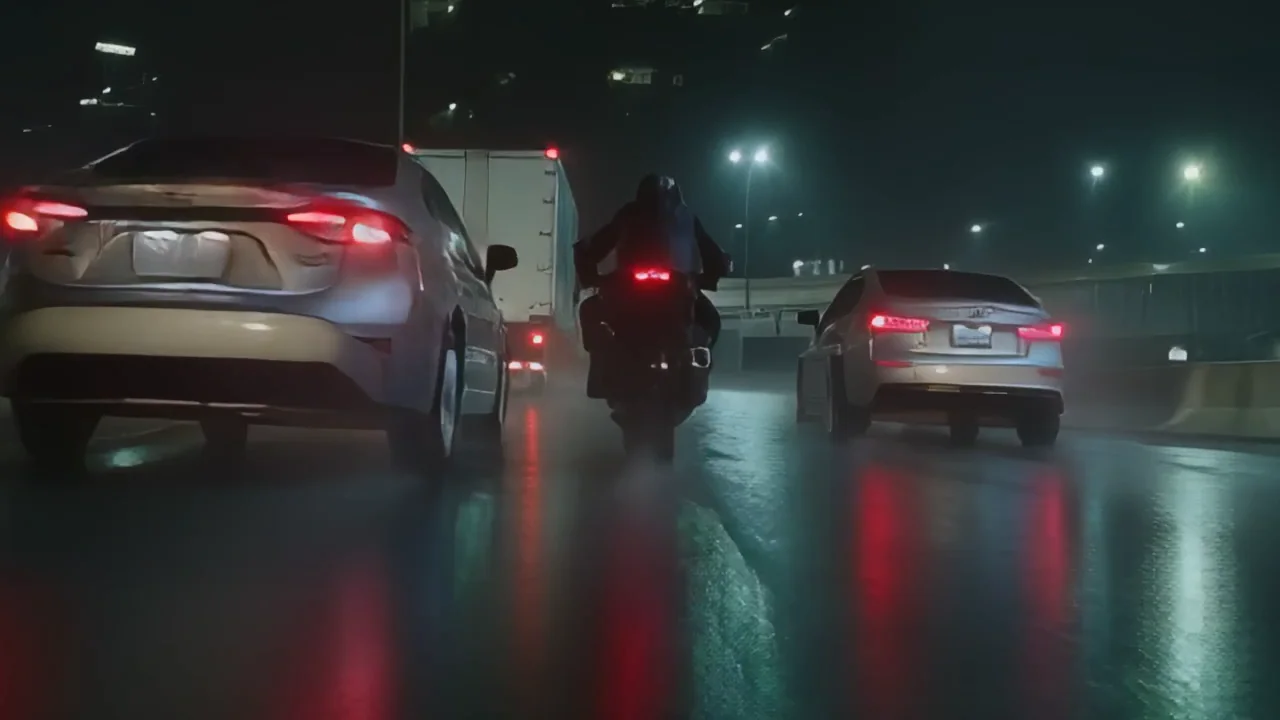
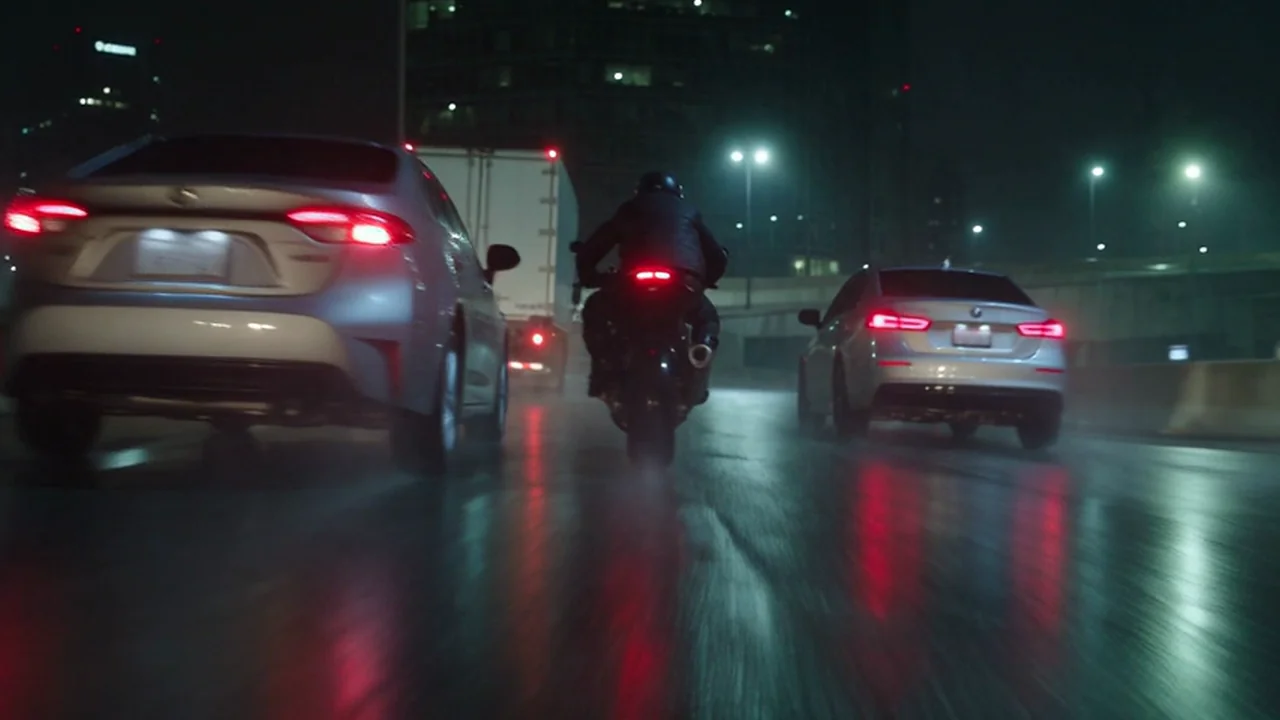 Generative passClean original
Watch for this:A restore can redraw a face. Engines that add detail, especially the generative ones and SeedVR2 at a high Detail strength, can change small features, including faces. Check people and any lettering in the result against your source before you use it.
When to use something else
- The shot itself is wrong, not its quality: change the object or the place with Miroge, or make it again.
- The colour is faded: grade it in Studio or with the Color grade footage preset after the restore.
- It is too short: open the clip in your Library and use Extend clip to continue it past its last frame.
What it costs
Restore engines are priced per five seconds of source at each resolution tier, and a faster frame rate than 30 frames per second costs proportionally more. Before you start, the console shows the most the run can cost for your clip, and you are charged the lower of the metered cost and that figure. A restore that fails is refunded.
Questions and answers
- Can it fix VHS or camcorder tape?
- There are engines made for it, in the Interlaced footage group: one for broadcast, VHS, DVD and SD, and one for camcorder tape. We tested this guide on a damaged digital clip, not on real tape.
- Can I tell it what to fix?
- No. Restore takes no prompt. The engine you pick and the resolution tier are the whole input.
- Will the people look the same?
- We have not measured it. Engines that add detail can change small features, faces included, so check the result against your source.
- Which plan do I need?
- The restore engines run on Starter and above.
Clean up a clip from your Library
Open Restore VideoRelated guides
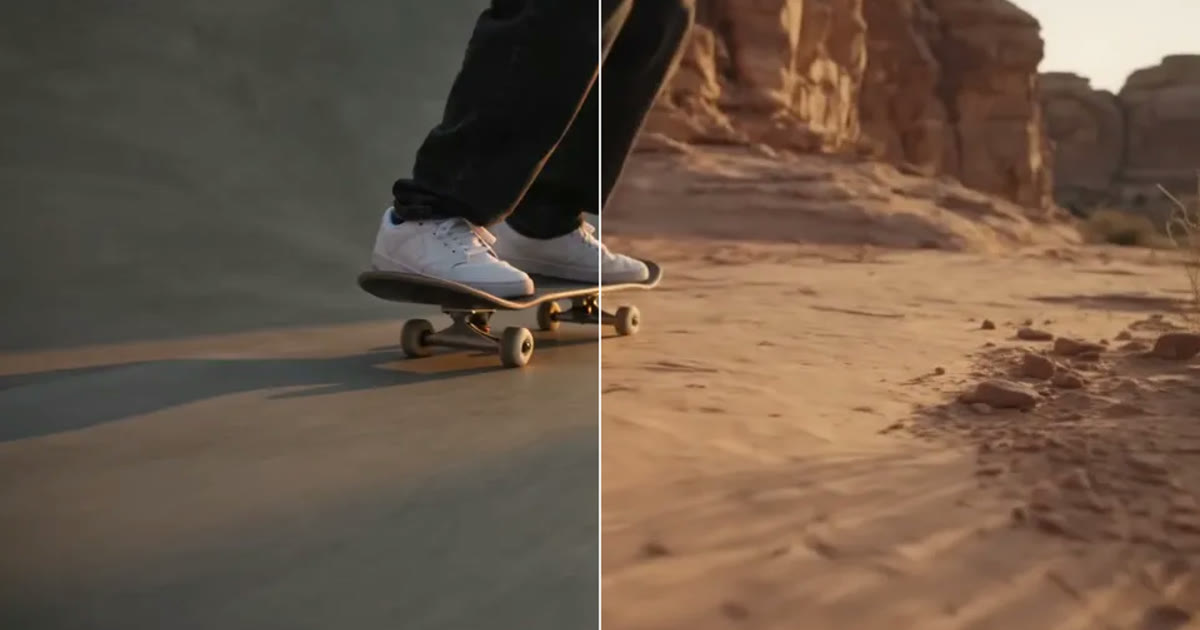
Video editing
A clip came out wrong: fix it or make it again
Most wrong clips do not need a new render. Swap the one thing that is off, move the scene, clean up the picture or extend it, and make it again only when the shot itself is wrong.
· 5 min read
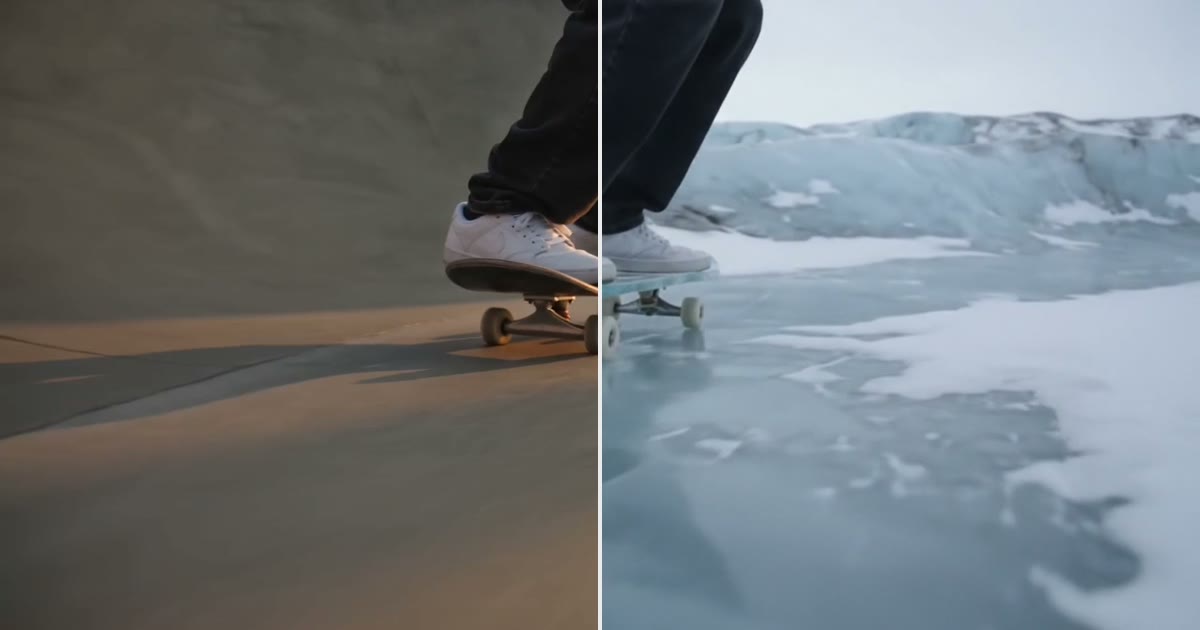
Video editing
Keep the subject, change the world around it
Keep the legs, hands or product in a clip and redraw the place around them. The prompt order that held in 6 of 6 tests, and where it breaks.
· 9 min read
Prompting
A prompt library: the exact prompts behind eight NOLGIA examples
Eight prompts copied from real NOLGIA renders, a film scene, a game trailer, a product film, a logo sting and more, each with the result and what makes it work.
· 8 min read