

Put your own character and your dog into any video
You found a clip with exactly the right moves. Now put someone else in it: you, a character from your library, or your dog. Miroge keeps the choreography, the set and the camera, and your photos become the performers.
- 9 min read
- Preset: Miroge: recast your clip
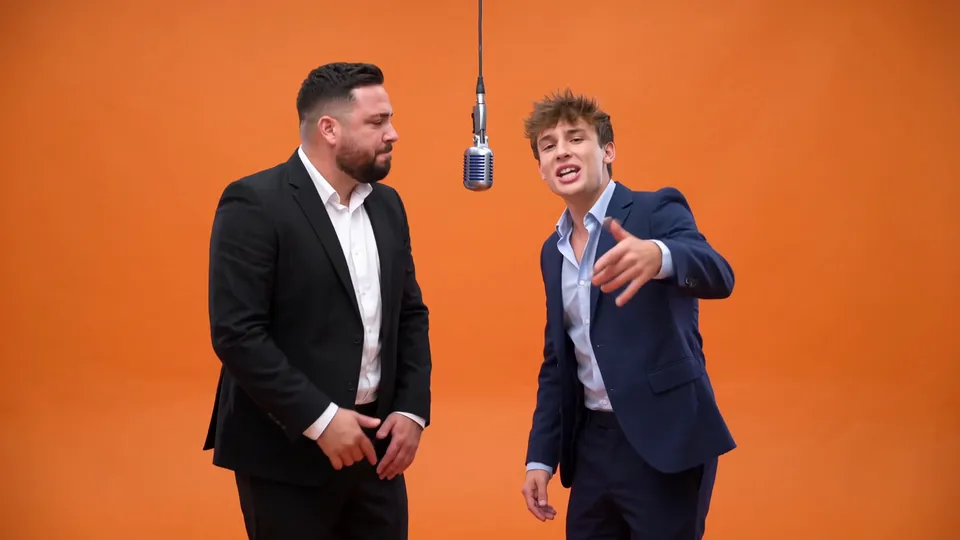
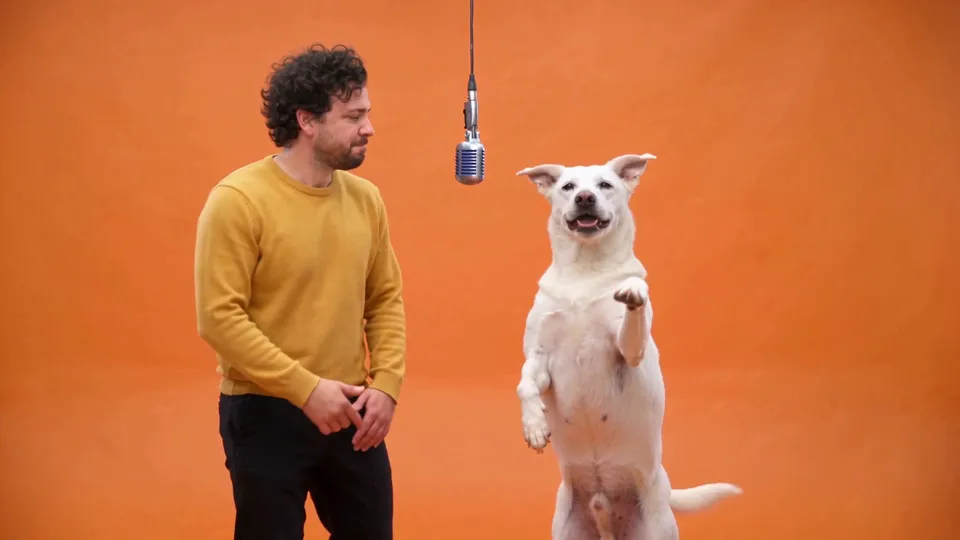
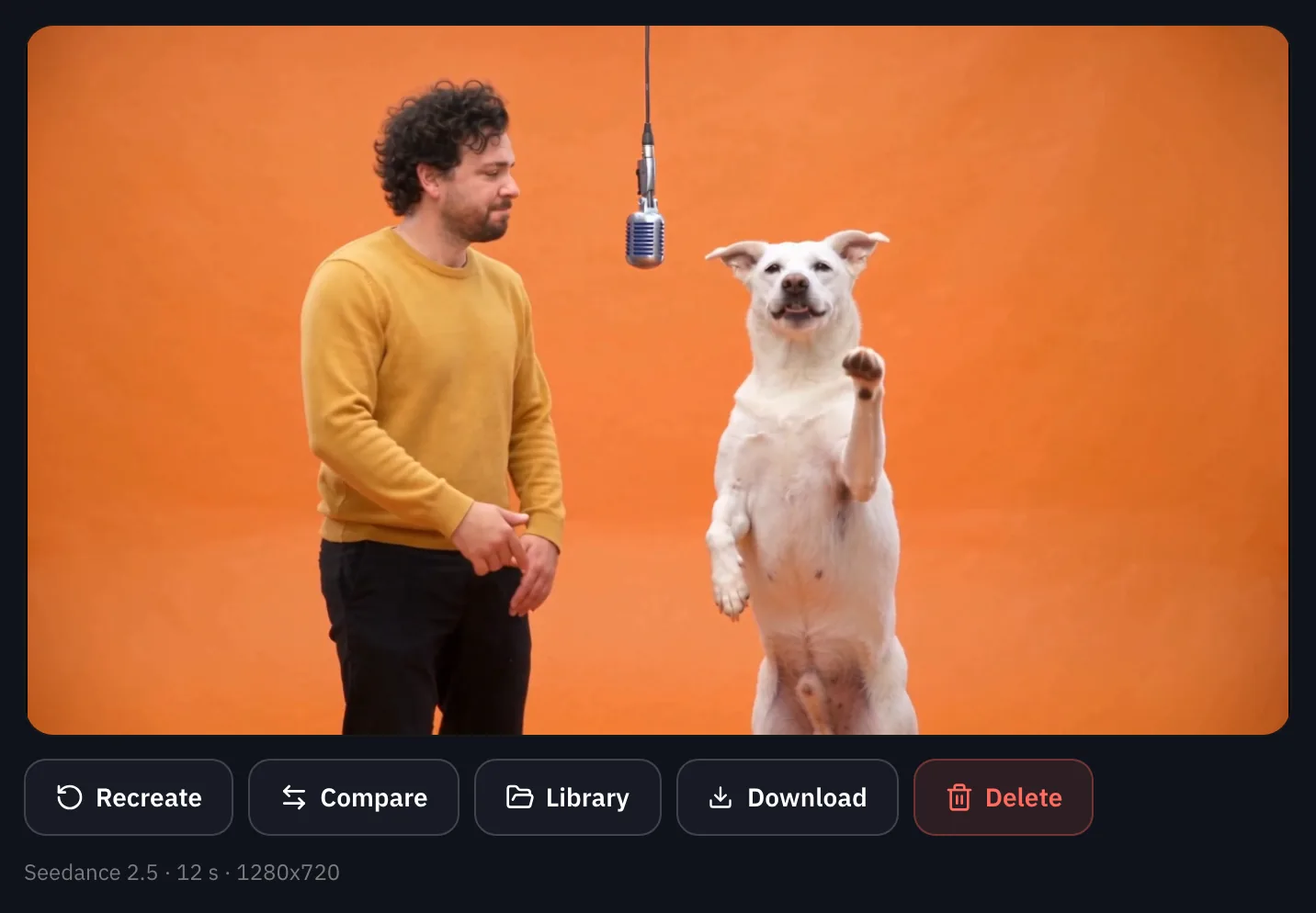
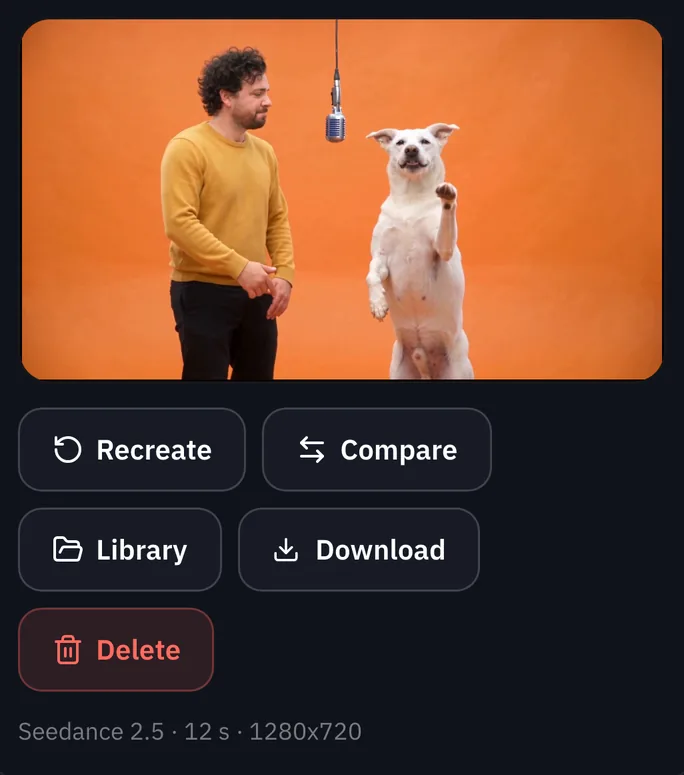
This guide follows one run from start to finish: a 12 second clip of two performers rapping at a hanging mic, recast with a man and a white dog standing on its hind legs. The performers, the man and the dog were all generated for this guide, and none of them is a real person or a real pet.
The files and the settings come first, so you can open them in Miroge in one click, or download them, and make the same thing yourself. Then every step is shown in the Miroge composer, on a computer and on a phone. At the end are two shorter examples of the other modes, Swap and New world, with their files too.
Try it yourself: the files and the settings
These are the exact inputs behind the main example. Press Use this example to open Miroge with the three files, the settings and the prompt already loaded, then press Generate. Or download the files and follow the steps below with these settings.
The motion transfer example
- The motion video: two performers at a hanging mic, 12 seconds, with its soundMP4 video · 1280x720 · 3.3 MBDownload
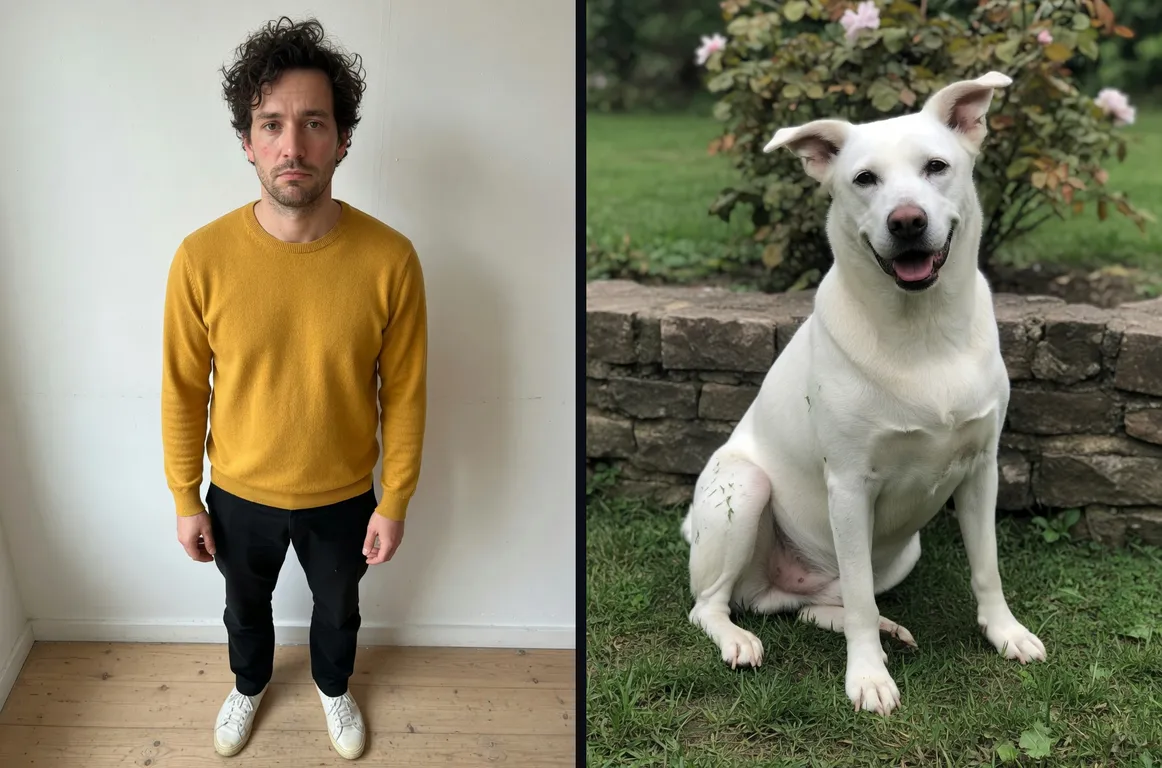
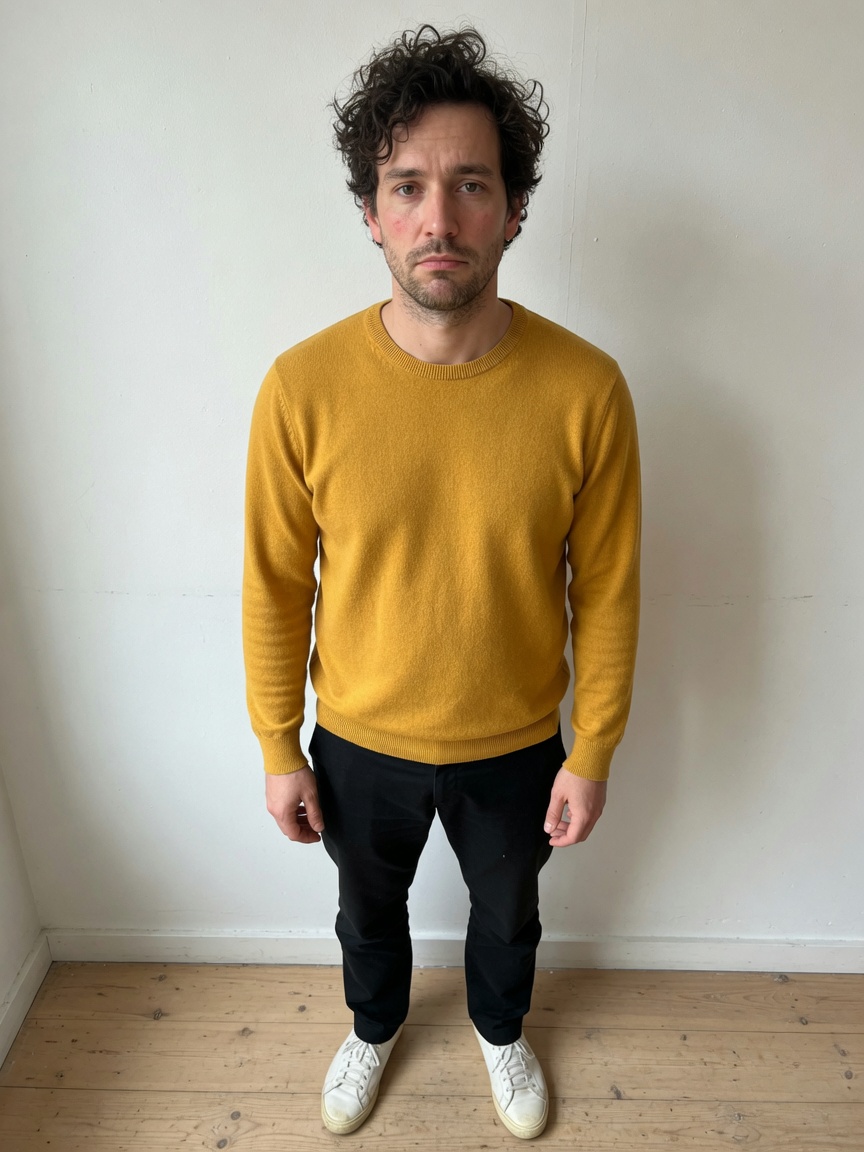
- The photo of the manJPEG photo · 864x1152 · 252 KBDownload
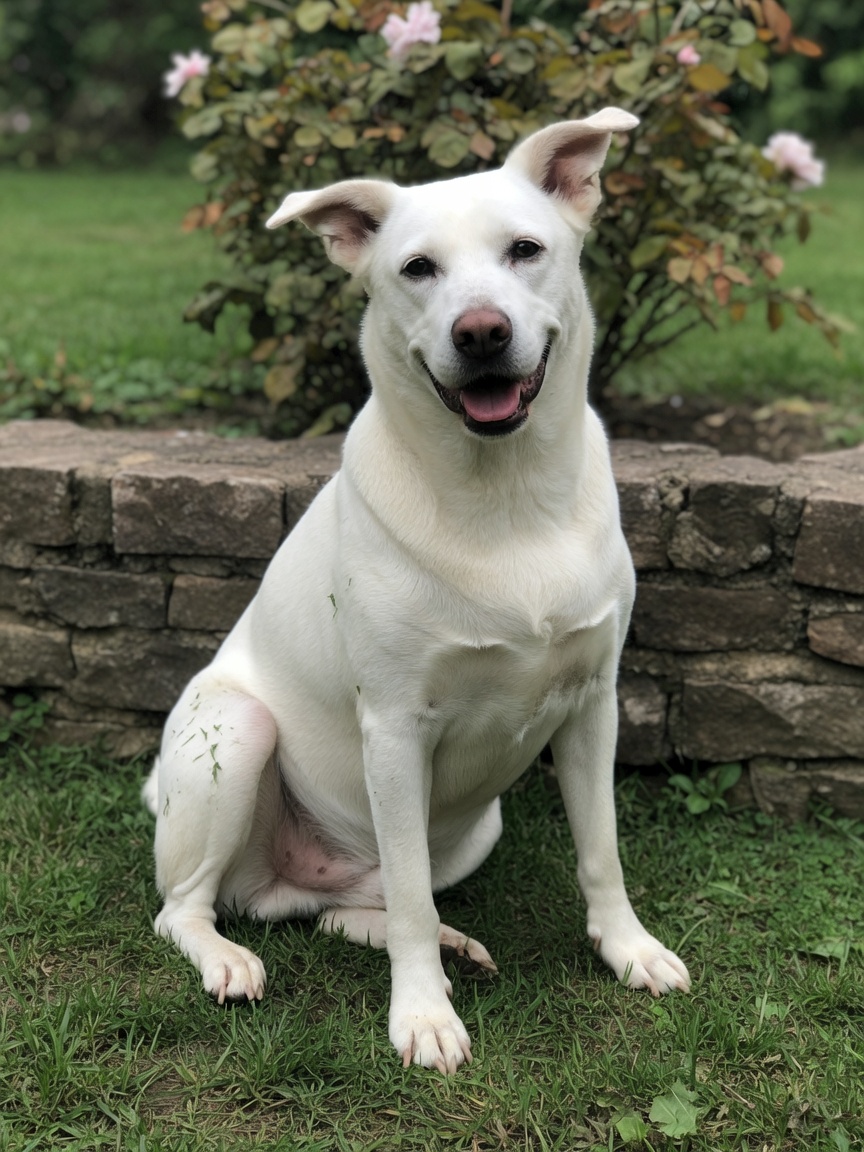
- The photo of the dogJPEG photo · 864x1152 · 359 KBDownload
| Setting | What we used |
|---|---|
| Mode | Motion transfer |
| Motion video | The motion video above |
| Your cast | The man first, then the dog |
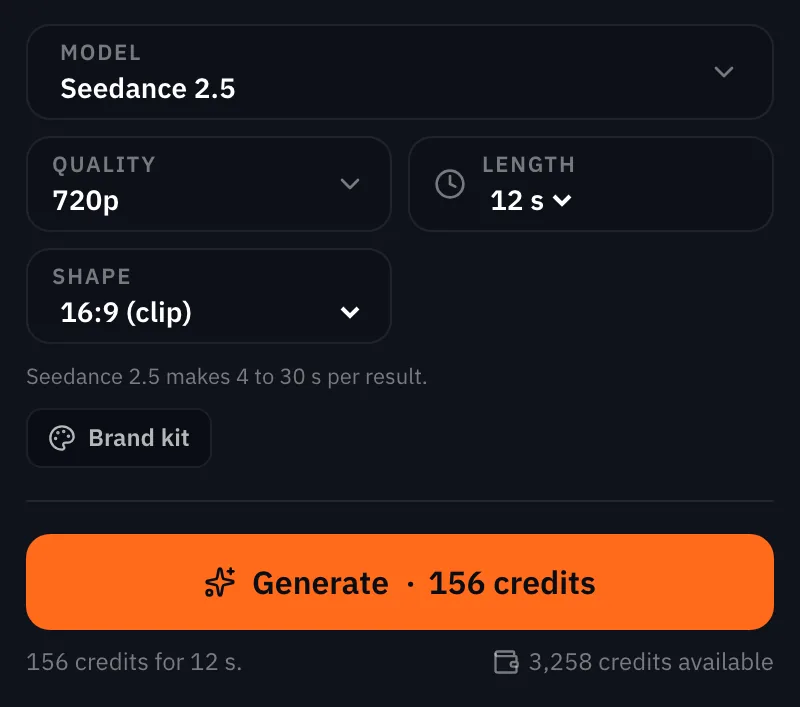
| Model | Seedance 2.5 |
| Quality | 720p |
| Length | 12 s, the clip's own length |
| Prompt | On, with the line below |
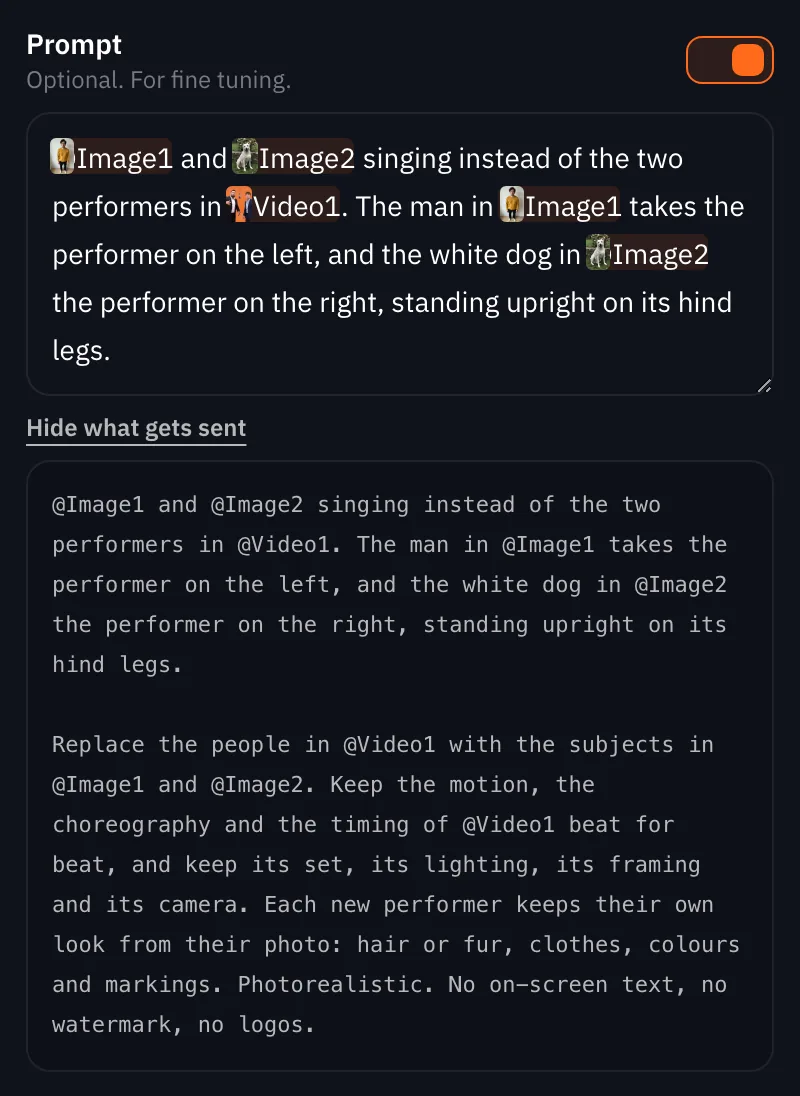
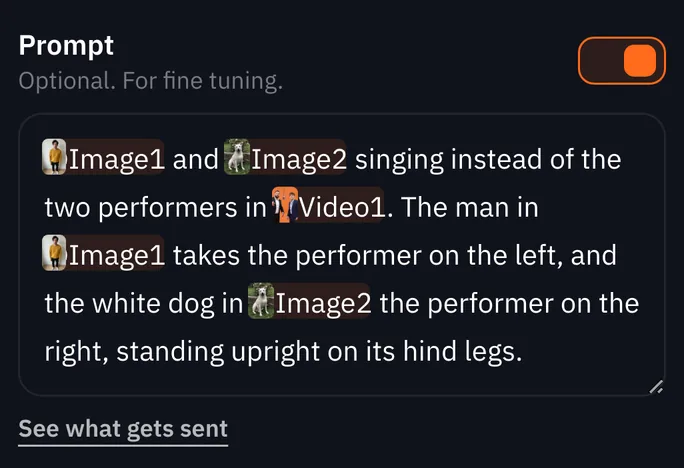
@Image1 and @Image2 singing instead of the two performers in @Video1. The man in @Image1 takes the performer on the left, and the white dog in @Image2 the performer on the right, standing upright on its hind legs.
- @Video1 is the motion video.
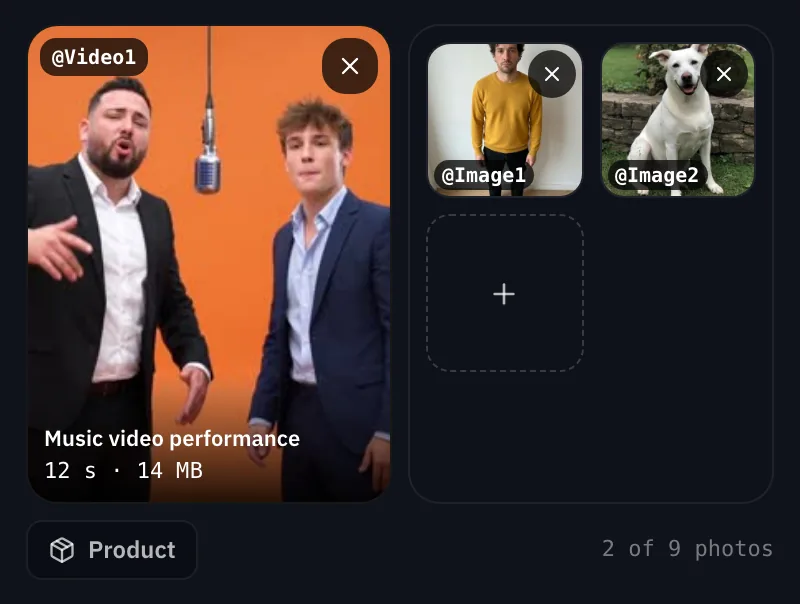
- @Image1 is the first photo you add, the man.
- @Image2 is the second photo you add, the dog.
- Type @ in the prompt to insert one: pick it from the list and it becomes a chip.
- The second sentence says which photo takes which place and that the dog stands on its hind legs.
Miroge adds its own instruction after your prompt: keep the moves, the set and the camera of the video, and take each performer's look from their photo. See what gets sent, under the prompt, shows the whole thing before you generate.
Your video
Miroge
Tip:Say who goes where. With two performers and two photos, name which photo takes which place, as the second sentence does. A run with the same files and only the first sentence left the dog out and gave the second performer the man's sweater.
Pick the motion video
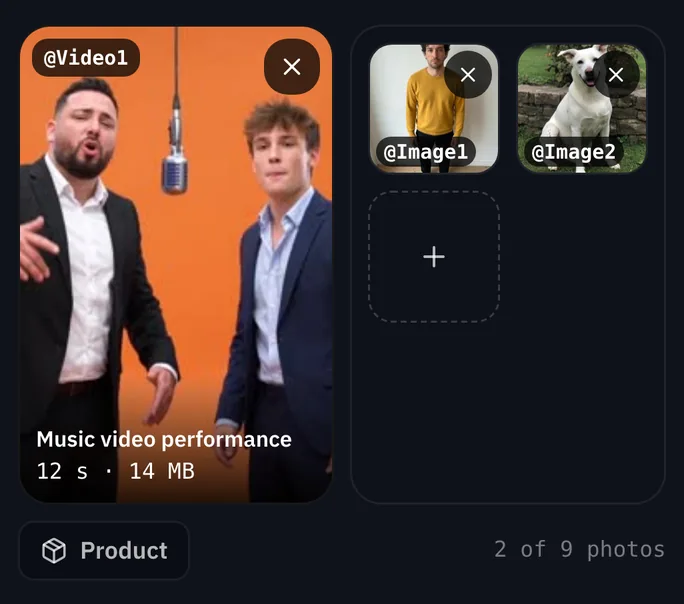
Open Miroge, or press Open Miroge on the preset page, and keep the mode on Motion transfer. The left tile is the Motion video: the clip whose moves, set and camera you want to keep. Press Upload for a file on your device, or Library for a clip you already made or uploaded.
Choose a clip where every performer stays in frame from start to finish, like the two performers at one hanging mic in our example.
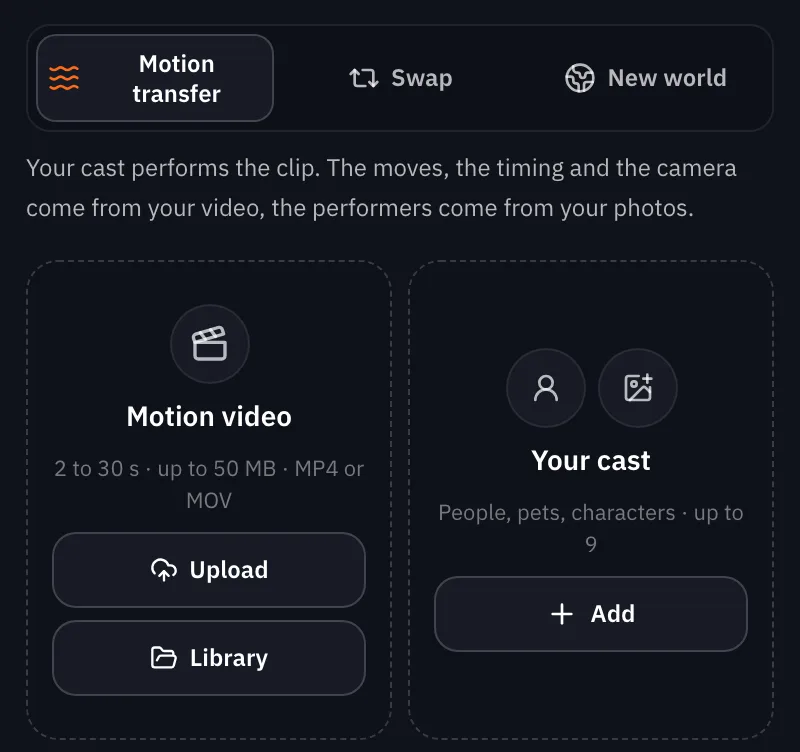
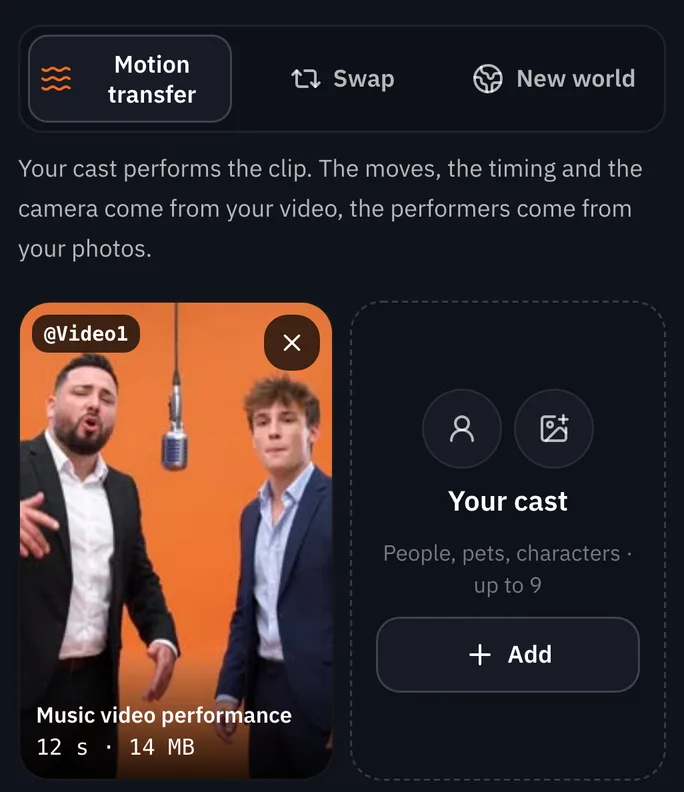
Watch for this:The clip has to fit the model. The tile shows the limits for the model you picked. If a clip is too long or too large, the composer says so and Generate stays off, so nothing is charged.
Add a photo of each performer
The right tile is Your cast. Press Add and choose Upload photos, From your Library or Characters. Add one photo for each performer in the clip: ours has two, so we added two photos, the man first and then the dog. Seedance 2.5 takes up to nine.
Use a clear photo of the whole performer, head to toe, so the model can see the clothes, the colours and, for a pet, the coat and the markings. A character from your Characters library works the same way as a photo.
Say more with @, if you like
The prompt is optional. With it off, Miroge replaces the people in the clip with the subjects in your photos, and keeps the moves, the timing, the set, the lighting, the framing and the camera.
Switch Prompt on to say more. Type @ and pick the video or a photo from the list: each one becomes a chip with its own thumbnail. Our example used the two sentences shown at the top of this guide. Miroge adds its own instruction after your words, and See what gets sent shows the whole prompt before you generate.
Generate
Under the prompt, pick the Model and the Quality. We used Seedance 2.5 at 720p, the defaults for Motion transfer. Length starts at your clip's length.
The price is on the Generate button before you press it, worked out for your clip, your model and your quality.
Tip:A refusal costs nothing. If the model refuses your clip, the run stops and the credits come back. Clips of well known people and copyrighted material are refused, so use footage you shot or made yourself.
Watch the result, then Recreate or Compare
Your version appears next to the form on a computer and under it on a phone, and it lands in your Library too. It usually takes a few minutes, and you can leave the page while it renders.
- Recreate runs it again with what is in the form: the same clip, cast and prompt, unless you changed them.
- Compare plays your clip and the result side by side.
- Library opens the result in your Library. Download and Delete sit next to it.
Another example: Swap
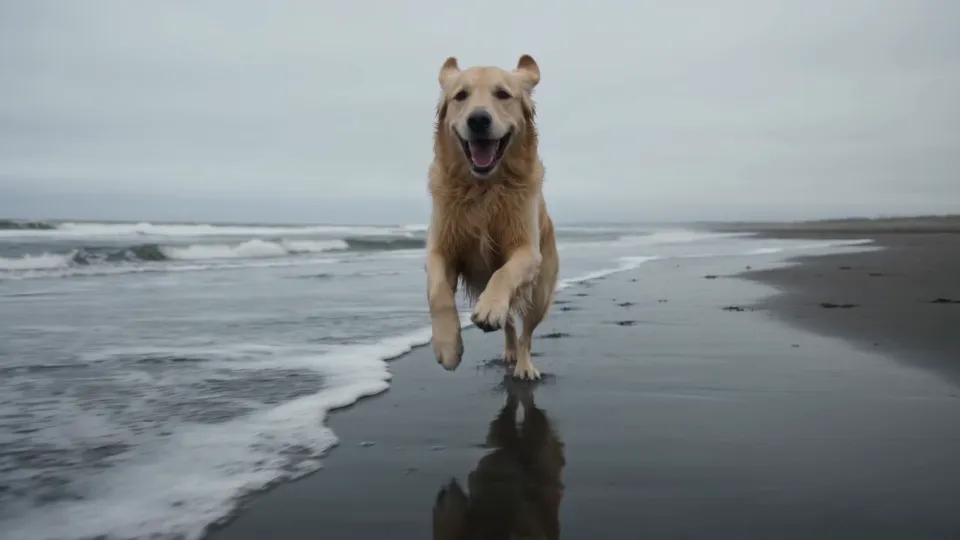
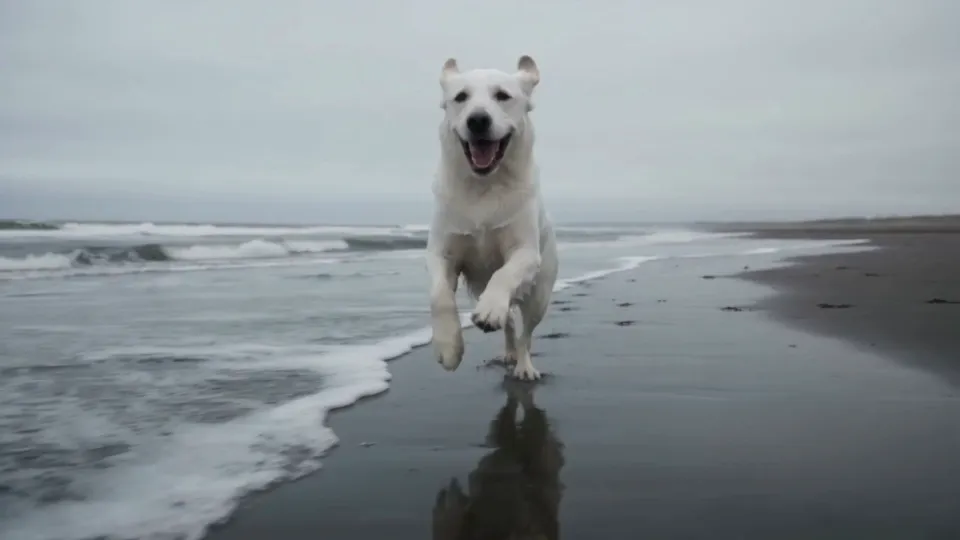
Swap changes one thing in a clip and keeps the rest of the shot. Here a retriever running on a beach became the white dog from the photo, with no prompt at all.
The Swap example
- The beach clip: a retriever running at the water's edge, 5 secondsMP4 video · 1280x720 · 2 MBDownload
- The photo of the dogJPEG photo · 864x1152 · 359 KBDownload
| Setting | What we used |
|---|---|
| Mode | Swap |
| Your clip | The beach clip |
| What goes in | The photo of the dog |
| Model | Seedance 2.5 |
| Quality | 720p |
| Length | 5 s, the clip's own length |
| Prompt | Off |
Your clip
Miroge
Another example: New world
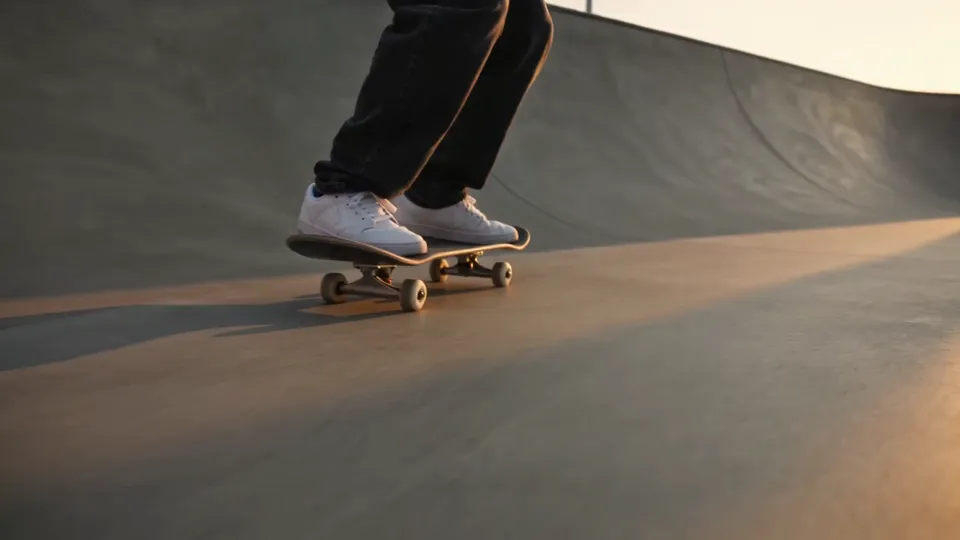
New world keeps the subject and its moves and redraws the place and the light around it. It runs on Gemini Omni 1.1, which takes no photos, so the change is all in words: what stays, and the new world. Keep the subject, change the world around it goes deeper on this one.
The New world example
- The skate clip: feet on a skateboard in a concrete bowl, 5 secondsMP4 video · 1280x720 · 2.7 MBDownload
| Setting | What we used |
|---|---|
| Mode | New world |
| Your clip | The skate clip |
| Model | Gemini Omni 1.1 |
| Quality | Fixed, this model has one |
| Length | 5 s, the clip's own length |
| Photos | None, this model takes no photos |
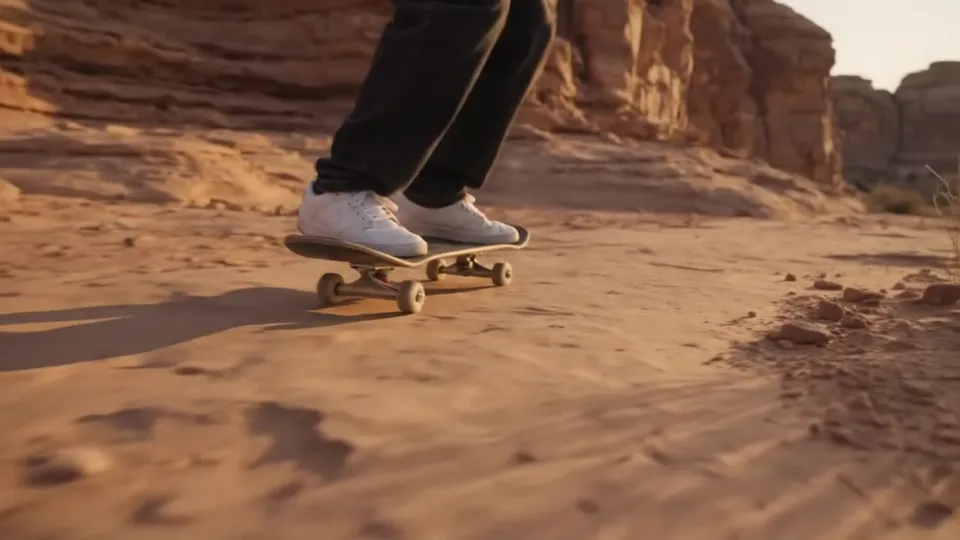
the rider: the same legs, black jeans and white sneakers, and the skateboard under them
the concrete bowl becomes a red sandstone desert canyon at sunset, dusty orange ground, tall layered rock walls, warm low golden light and long shadows
Your clip
Miroge
What it costs
Both models are priced by the length of the result, and on Seedance 2.5 a higher quality costs more. The exact price for your clip is on the Generate button before anything runs.
Seedance 2.5Pro and up
Per 5s clip
480p 26 credits · 720p 56 credits · 1080p 137 credits
1080p renders at 16:9 and 9:16
Gemini Omni 1.1Pro and up
Per 5s clip
Standard 50 credits
Read live from the catalog when this page loads. Every price is shown before you generate. See every rate.
Questions and answers
- How long can my video be?
- Seedance 2.5 makes 4 to 30 seconds per result, and your clip can be up to 30 seconds long. The video tile shows the limits for the model you picked.
- Does it work with a pet?
- Yes. Add a photo of your pet the same way as a photo of a person. In this guide a white dog took the place of one of the two performers. If the pose matters, say it in the prompt: our run asked for the dog standing on its hind legs.
- What if the model refuses my video?
- The run stops and the credits are refunded. Clips of well known people and copyrighted material are refused, so use footage you shot or made yourself.
- Can I use a video from my phone?
- Yes. MP4 and MOV both work, including the HEVC video many phones record. The one thing to check is the length: the clip must be no longer than the model allows, 30 seconds on Seedance 2.5, and even a fraction of a second over counts, so trim it first.
- Can I use a character instead of a photo?
- Yes. Press Add, then Characters, and pick one from your library. It joins the cast next to your photos, and you can point at it with @ and its name.
- Will I get exactly the same result with your files?
- Not frame for frame. Every run is a new render, so two runs with the same files and settings come out different. If a take is not right, press Recreate, or add detail to the prompt.
Recast a video with your own cast.
Open MirogeRelated guides
Video editing
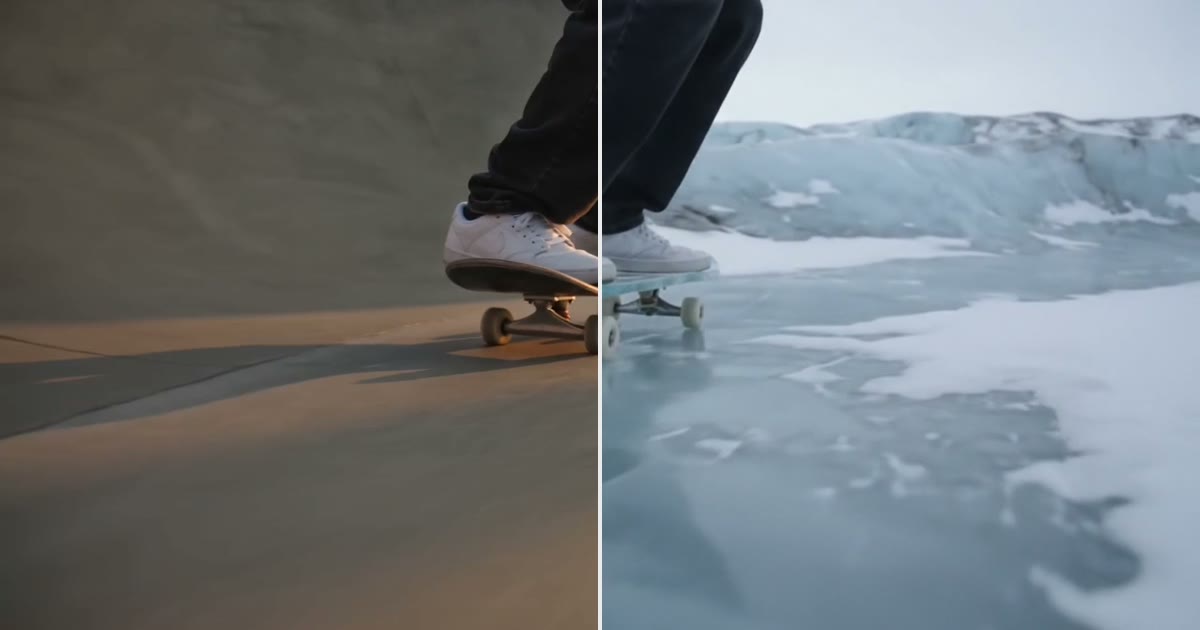
Keep the subject, change the world around it
Keep the legs, hands or product in a clip and redraw the place around them. The prompt order that held in 6 of 6 tests, and where it breaks.
· 9 min read
Product video
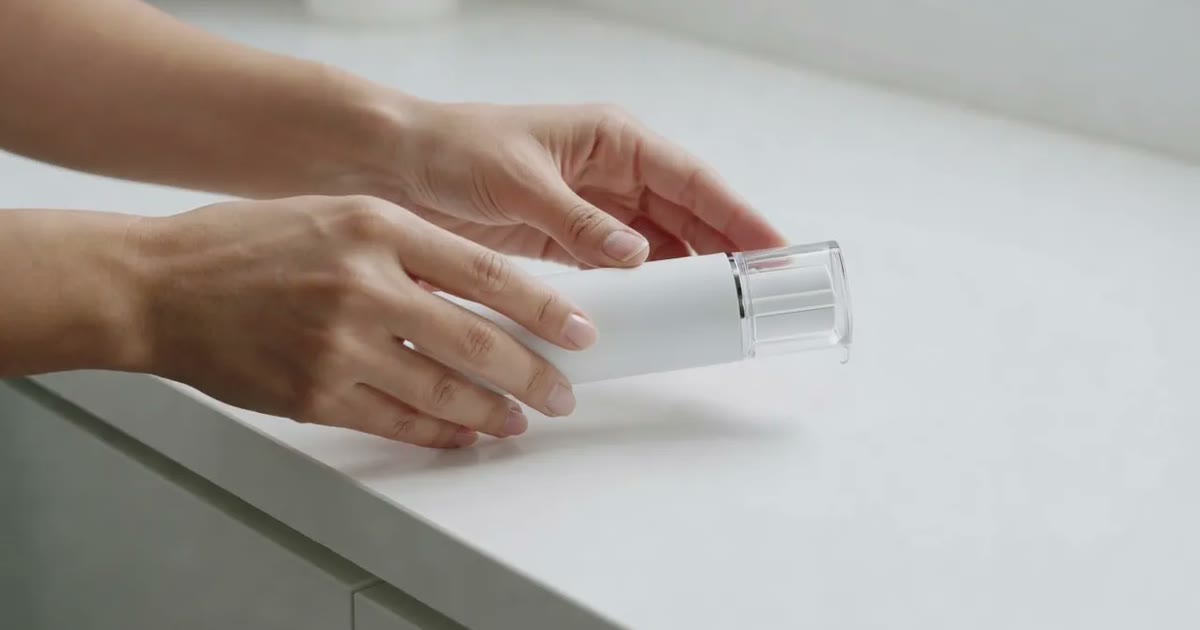
Product videos without filming: pick the format
Seven product video formats, from a how to clip to an unboxing to hands only, each with a real example, what it is for and when to pick it.
· 7 min read
Video editing
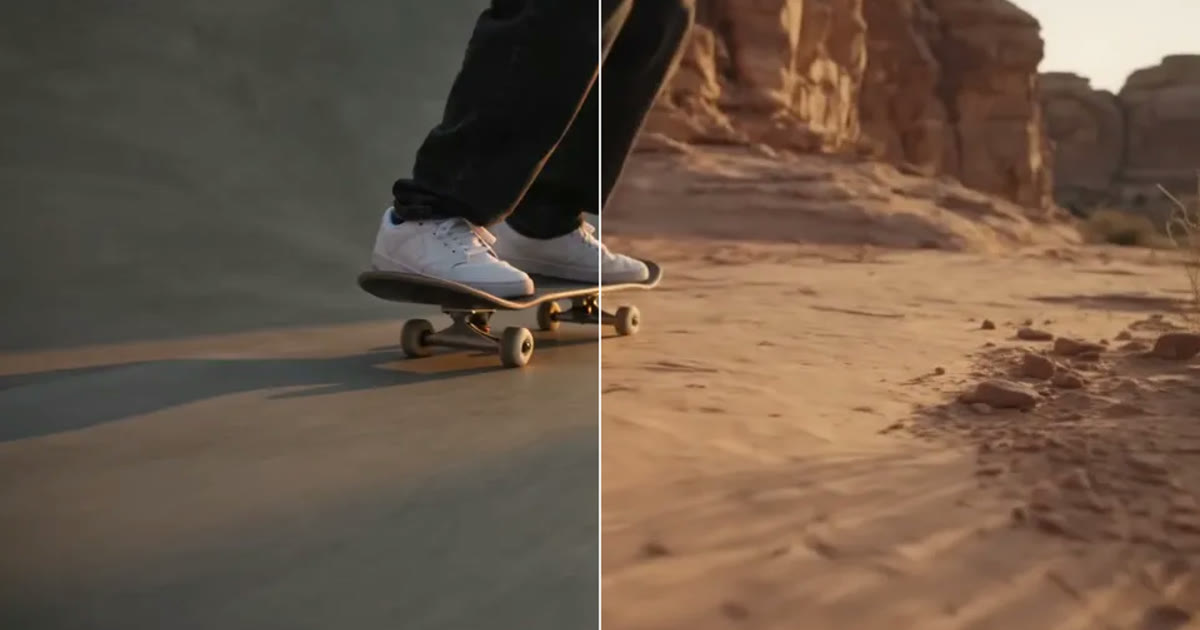
A clip came out wrong: fix it or make it again
Most wrong clips do not need a new render. Swap the one thing that is off, move the scene, clean up the picture or extend it, and make it again only when the shot itself is wrong.
· 5 min read